Learn Magic Weather, one screen at a time.
Every chapter shows the real app. Hover or tap a numbered point to see what it does, or press Play the tour to be walked through a screen step by step.
The Forecast tab
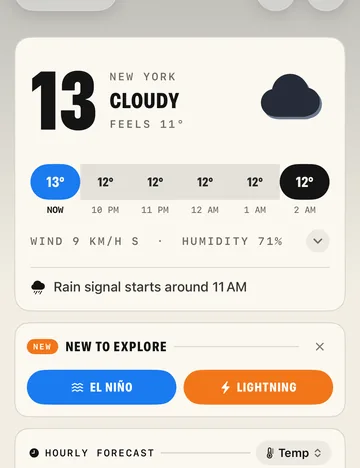
Magic Weather opens on the forecast for where you are. The page reads from top to bottom: now, the next hours, the days ahead, then the details. When there is a weather warning or a tip for the day, it appears above everything else.
Hours & the AI brief
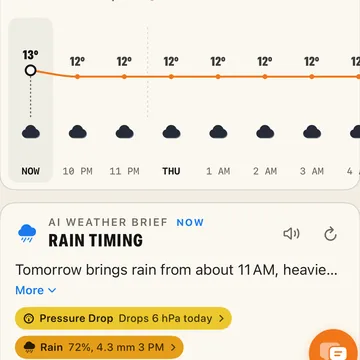
Scroll a little and the next 24 hours appear as one curve you can touch. Under it, the AI Weather Brief tells you in a few words what the numbers mean for your day.
The brief needs Apple Intelligence
The AI Weather Brief and the one-line day summaries are written on your device. On an iPhone, iPad or Mac without Apple Intelligence, the app shows a plain summary built from the forecast instead.
Hear it instead
Tap the speaker and Magic Weather reads the brief aloud. Voice options live in Settings › Intelligence & Voice.
The weathergraph
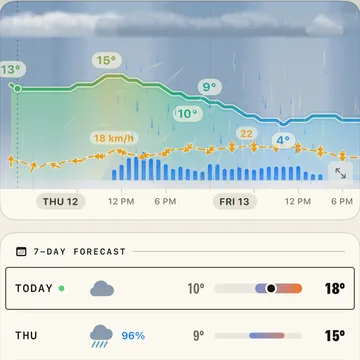
One picture of the days ahead: the sky on top, temperature as a line, wind as a dashed line with arrows, rain as bars along the bottom. Read it like a timeline, from left to right.
Press and hold to read a moment
Hold your finger on the graph and slide. A card follows your finger with the time, temperature, wind, rain and sky at that exact moment. On a Mac, just move the pointer over it.
Cold weather shows as ice
At or below freezing the temperature line ices over, with frost and icicles, and a dashed line marks 0 °C. Rain at freezing temperatures falls as icy drops.
The week
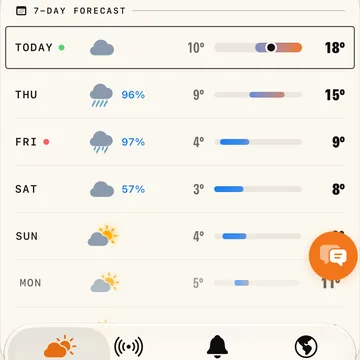
Seven days, one row each. Tap a day and it opens in place with an hour-by-hour chart for any reading you choose.
Details & trends
Below the week, each reading has its own tile. Tap a tile to open its hour-by-hour timeline. You choose which tiles appear and in what order (see Look & layout).
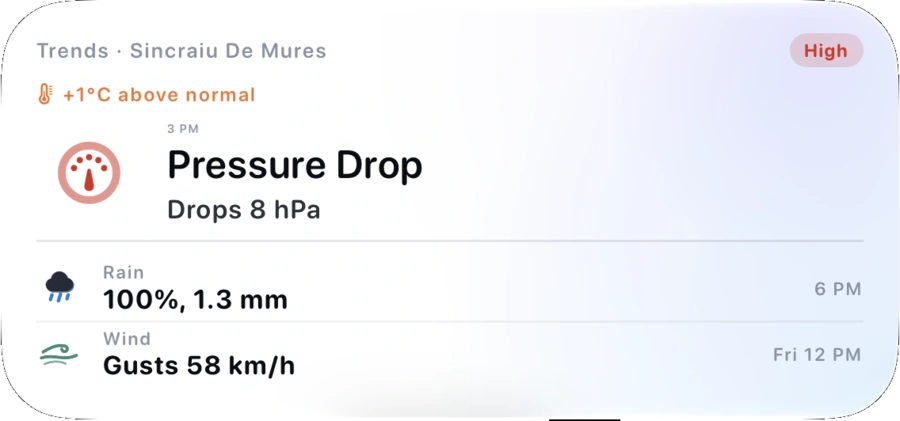
Weather trends
The last card on the page looks a week ahead and lists what is changing, starting with what matters most.
Look & layout
The button beside Settings opens Forecast layout. Pick a theme, decide which sections the Forecast page has and in what order, and choose your detail tiles. The same editor is in Settings › Forecast Layout.
Sections and tiles
Scroll down in the sheet for the sections, then the detail tiles.
Themes
A theme changes more than colours: the hero, the charts, the type, the widgets and the Apple Watch all follow it. Tap the names to see the same screen in each of the eight themes.
Appearance
Themes and app icons also live in Settings › Appearance.
The Earth
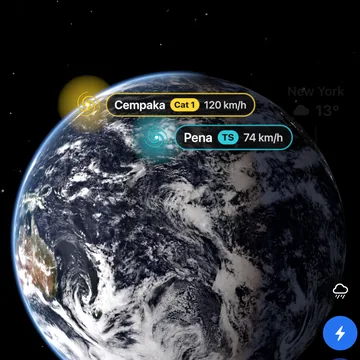
The Earth tab is a photoreal globe with today’s real clouds. Spin it, zoom in, switch layers and follow storms as they move.
Layers
Each layer paints the whole planet with one kind of data, with its scale underneath. On a data layer, tap anywhere on the globe to read the value at that point.
Following a storm
Tap a storm’s label and the Earth flies to it.
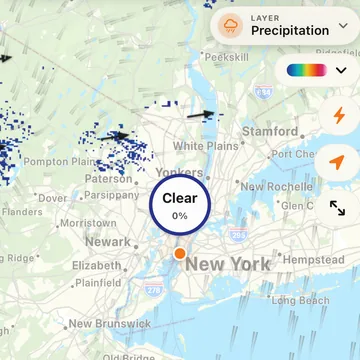
Radar
A map of what is falling right now around you, and how it has been moving.
Alerts
Magic Weather watches the sky for you and tells you when something is about to change. The Notifications tab decides how much it tells you.
Live Activities
When rain, snow or a storm is on its way, a Live Activity appears on the Lock Screen and in the Dynamic Island and follows it until it has passed.
Your iPhone’s own barometer
iPhone and Apple Watch measure air pressure themselves. A fast drop often comes before a storm, and Magic Weather can warn you about it even without a connection.
Places
Tap the place name at the top of the Forecast tab. Search for anywhere in the world, or keep a list of the places you care about.
Weather Chat
The round button that floats above the tabs opens Weather Chat. Ask a question the way you would ask a friend who knows the forecast.
Things you can ask
Gestures
Most of the app answers to touch directly. These are the ones worth knowing.
 Opens the day
 Weather here
 Selects the hour
Widgets & Live Activities
Put the weather on your Home Screen, Lock Screen or Mac desktop. Widgets follow the theme you chose in the app.
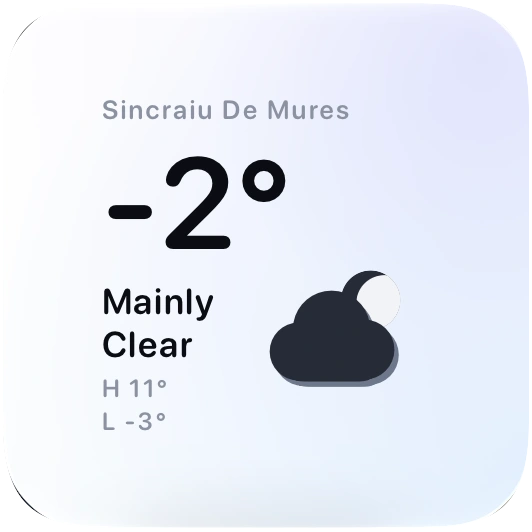
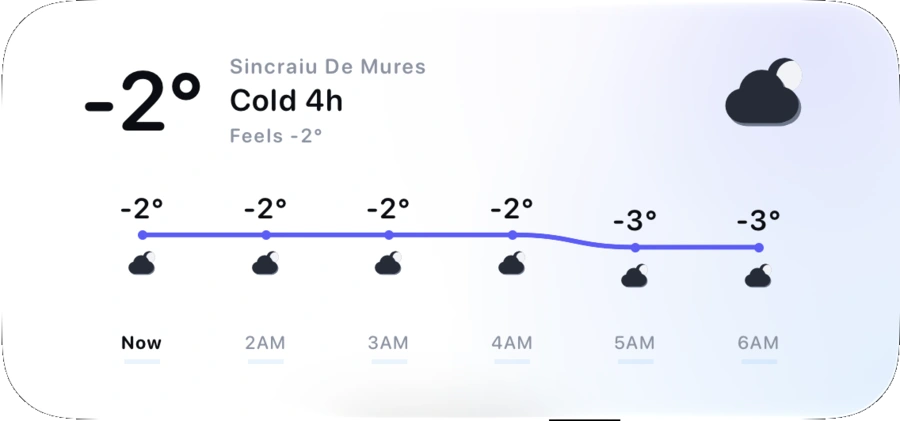
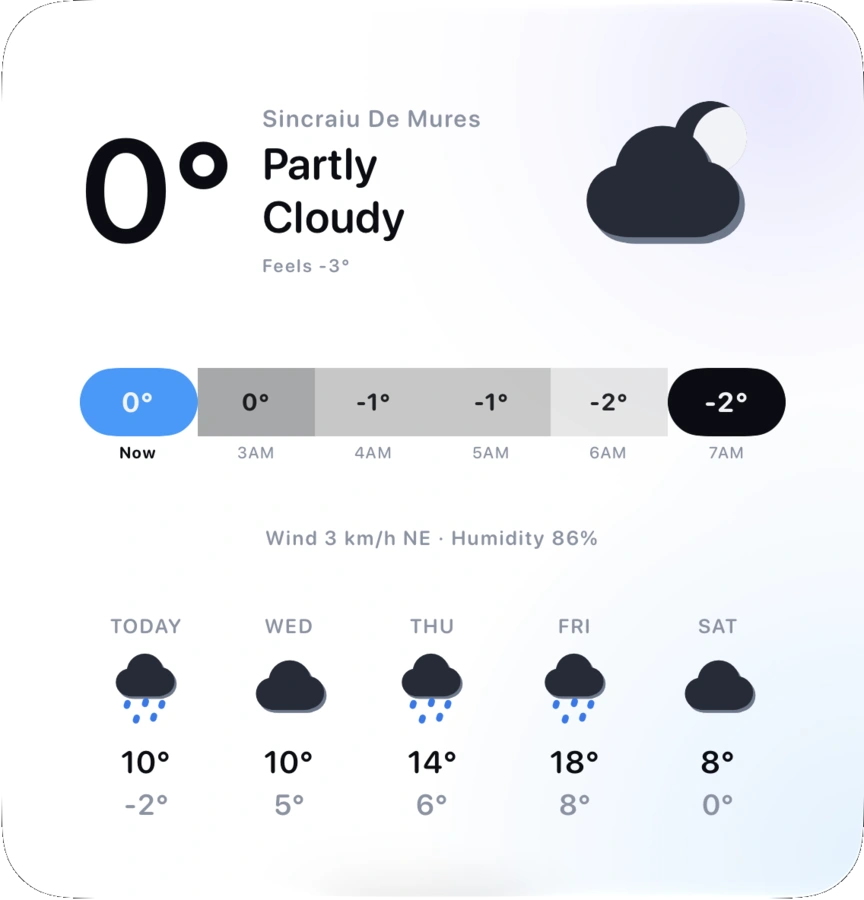
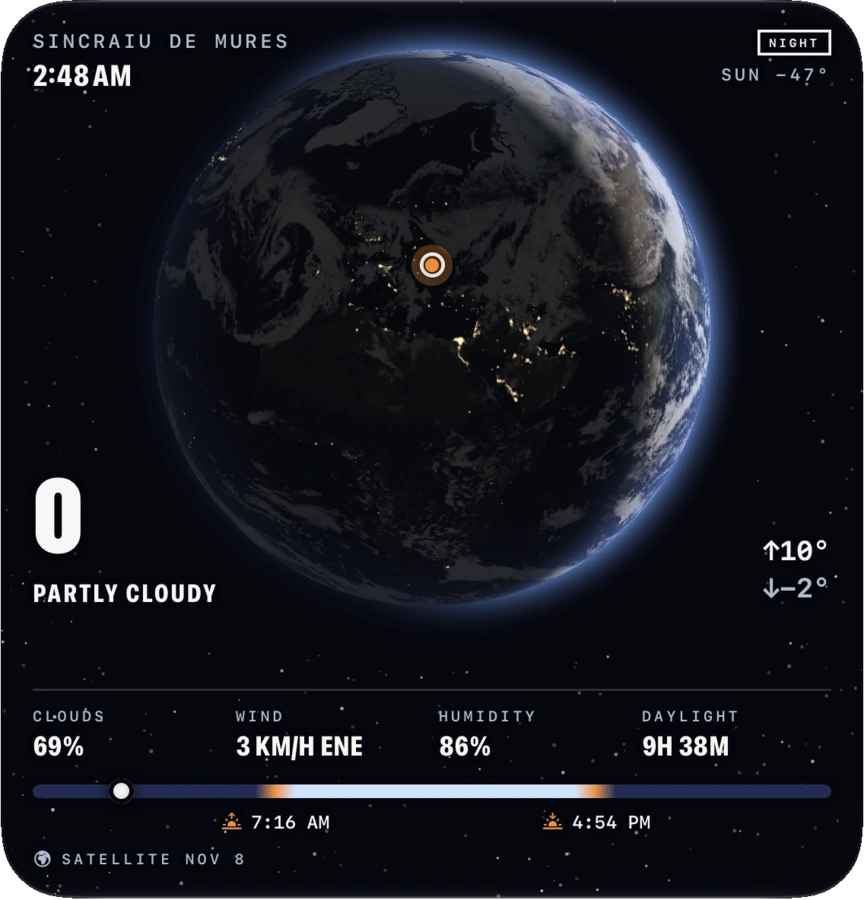
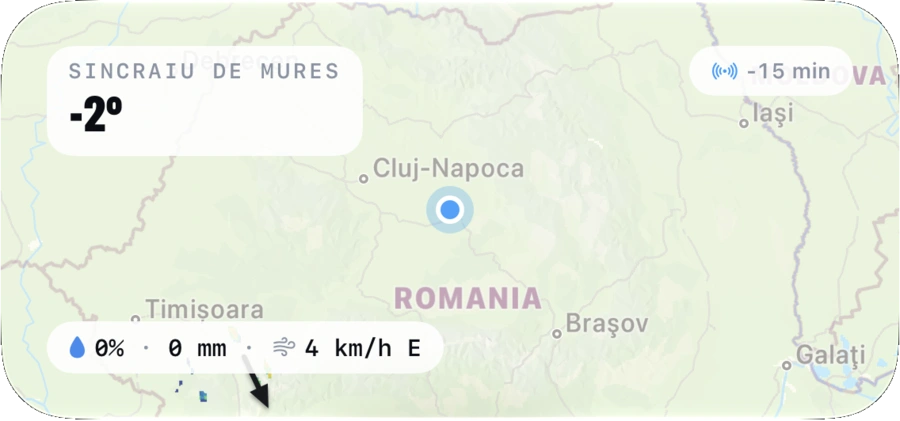
Add a widget
- Touch and hold an empty spot on the Home Screen.
- Tap Edit, then Add Widget, and choose Magic Weather.
- Pick a widget and a size, then tap Add Widget.
Lock Screen and Apple Watch
Smaller versions fit the Lock Screen, and Apple Watch has complications for its watch faces. A weathergraph widget, a wind widget and a migraine-risk widget are in the list too.
Apple Watch
The watch app comes with the iPhone app and wears the same theme. It works on its own, following your location.
Mac
On the Mac, your places sit in a sidebar and the Forecast spreads into two columns. The tabs (Forecast, Radar, Notifications, Earth) are in the window’s top bar, and today’s weather stays in the menu bar.
In the menu bar
The temperature and sky stay in the menu bar. Click it for quick actions, or to open the full window.
Keyboard shortcuts
- ⌘ O Open Magic Weather
- ⌘ R Refresh the weather
- ⌘ , Settings
- ⌘ Q Quit
Apple TV
On Apple TV, Magic Weather is the Earth on your biggest screen, with the weather for your cities beside it.
Siri Remote
- Swipe the touch surface to turn the Earth.
- Play/Pause stops and resumes its motion.
- Hold Play/Pause to go back to the starting view.
Storms
The Storms panel lists the active tropical storms. Pick one and the Earth flies to it, with its category, winds, pressure and forecast track.
More to see
Switch weather layers, explore the solar system, and leave ambient soundscapes playing while the planet turns.
Settings
The gear at the top right of the Forecast tab. Seven groups, and a search field that finds any setting by name.
Questions
How do I change °C to °F, or km/h to mph?
Open Settings › General. Temperature, wind, pressure and precipitation each have their own unit.
How do I hide a part of the Forecast page?
Tap the layout button beside Settings on the Forecast tab and switch that section off. Drag the handles to reorder the rest. See Look & layout.
How do I add another city?
Tap the place name at the top of the Forecast tab, search for the city and tap it. It is saved to your list, and you can switch between places from the same sheet.
I am not getting any alerts.
Open the Notifications tab. If it shows “Needs attention”, tap Allow to let iOS show notifications, and set Location to Always so alerts keep working while the app is closed. Then check that “Alerts are on” is switched on.
Where are the AI Weather Brief and Weather Chat?
Both need Apple Intelligence, so they appear on devices and system versions that support it. Without it, the app shows a plain summary made from the forecast.
The Device Barometer tile is empty.
That tile reads the pressure sensor inside your iPhone or Apple Watch. On a device without the sensor it stays empty; you can switch the tile off in Look & layout.
How do I change the theme or the app icon?
The fastest way is the layout button on the Forecast tab: the themes are the first row. Themes and the fifteen app icons are also in Settings › Appearance.
How do I show the Earth on my TV?
On the Earth tab, tap the Apple TV button at the bottom left and choose your TV. Magic Weather draws the Earth for the TV’s own screen. There is also a separate Apple TV app.
How do I use the Earth as a bedside clock?
On the Earth tab, tap the clock button. It also starts by itself when the iPhone is charging and held sideways on the Earth tab.
Is my location shared with anyone?
Your location is used to fetch the forecast and alerts for where you are. The details are in the privacy policy.
Something isn’t working.
Tell us. The bug report page collects what we need in a minute, and the support page has more answers.