Most iPhones and Apple Watches contain a pressure sensor. Magic Weather can log it in the background and send an on-device storm alert when the pressure falls fast. Turn it on from the Device Barometer tile on the Forecast tab or the Device Barometer section of the Notifications tab, choose a sensitivity, and keep Background App Refresh on. It works offline, and the readings stay on your device.
Why a barometer still matters
A forecast is made hours before you read it. A barometer measures what the air is doing now, where you are. When the pressure starts to fall quickly, a front or a storm is usually on its way, often a few hours before the forecast catches up.
That is the whole idea: the forecast tells you what should happen, and the barometer tells you what is happening. How to read pressure changes.
Turn it on
- On the Forecast tab, scroll to the detail tiles and find Device Barometer. Tap Turn on barometer.
- Allow Motion & Fitness access when iOS asks. The pressure sensor sits behind that permission.
- Wait about an hour. The tile shows "Collecting readings…" until it has enough to draw a trend.
If the tile says "This device has no barometer", your iPhone does not have the sensor. You can switch the tile off in the layout sheet.
Switch on the storm alert
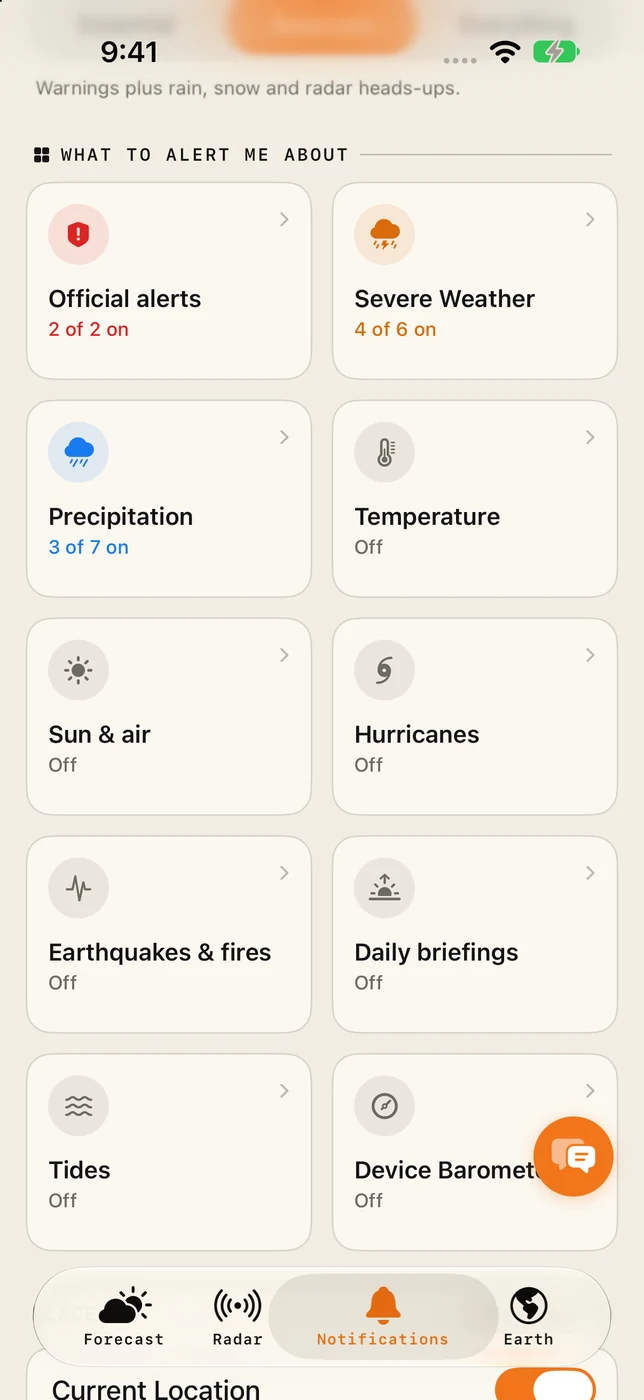
- Open the Notifications tab and tap the Device Barometer tile.
- Switch on Barometer storm alert.
- Choose a sensitivity and the time window for the drop.
- Keep Background App Refresh on in iOS Settings, so the app gets readings while it is closed.
| Sensitivity | What it alerts on |
|---|---|
| Sensitive | An early heads-up on any notable fall. More alerts. |
| Standard | Falls that usually bring a weather change. |
| Storms only | Only sharp falls that often mean gales or storms. |
| Custom | Pick your own drop, in your pressure unit. |
Drop within sets the time window: 1, 3, 6 or 12 hours. A short window catches sudden drops before thunderstorms and squalls. A long window catches the slow, deep fall ahead of a big low.
What the alert says
The notification gives the drop, the time it took and the current reading, in your units. For example: "Your barometer: −4.2 hPa in 3 h, now 1003 hPa. A front or storm may be on the way."
Touch and hold the alert for four quick buttons:
- Pressure chart opens the full chart.
- Radar shows what is coming.
- Snooze 3 h pauses the alert for a few hours.
- Mute until tomorrow silences it for the rest of the day.
A banner also appears at the top of the Forecast tab while the fall is under way.
Reading the chart
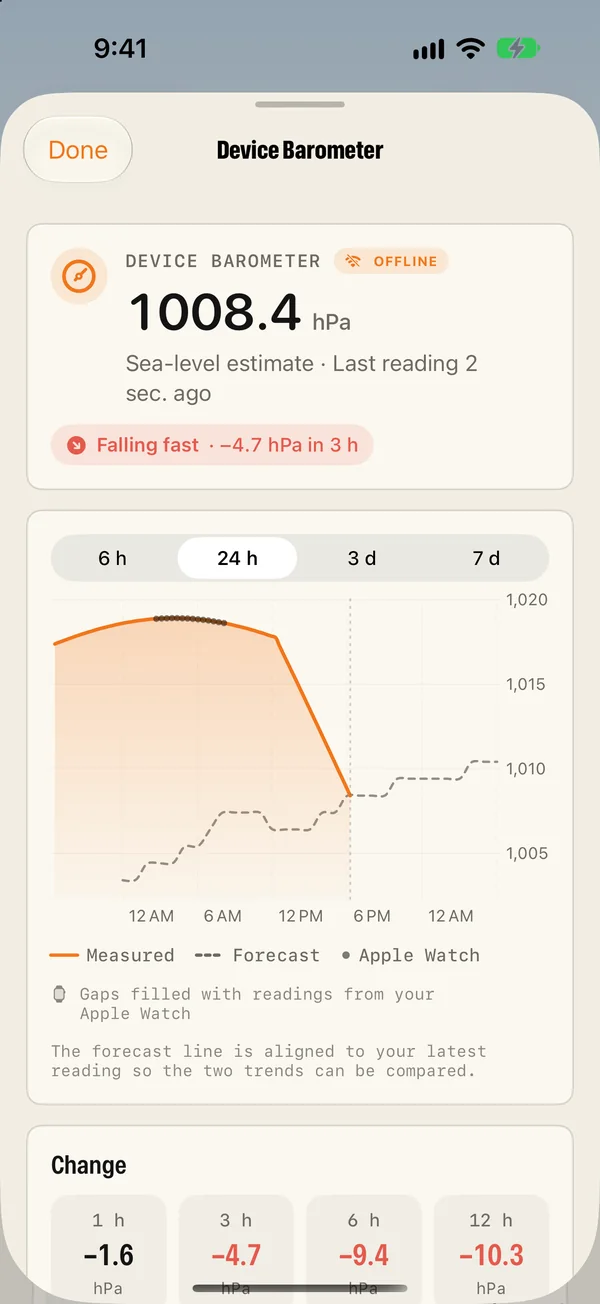
Tap the Device Barometer tile to open the chart. It shows two lines:
- Measured: what your iPhone recorded.
- Forecast: what the forecast expected, aligned to your latest reading so the two trends can be compared.
When the measured line falls faster than the forecast line, the weather is arriving early or harder than predicted. The tile also gives the trend in words, from Rising fast through Steady to Falling fast and Storm drop.
You can view the reading two ways: at your altitude, which is what the sensor measures, or as a sea-level estimate, which matches the number in a forecast.
Moving around
Pressure also changes when you change height: about 1 hPa for every 8 metres. A lift ride of ten floors looks like a small storm to a raw sensor.
Magic Weather removes these steps using your last known location, so lifts, stairs and drives up a hill do not set off alerts. With location set to Always, iOS also wakes the app when you move, which adds readings and makes the trend smoother.
On Apple Watch
Apple Watch has its own barometer. The watch app has a Barometer page and a complication for your watch face, and it can send its own alerts from the wrist.
The iPhone and the watch share their readings. Each keeps its own measurements and fills gaps from the other, so the chart stays complete even if you leave your phone at home. Only your own device's readings trigger alerts.
Battery and privacy
- Battery: the sensor is never left running. The app takes one reading when iOS wakes it in the background and one every 10 minutes while it is open.
- Offline: everything works with no connection. Useful on a hill, a boat or anywhere with poor signal.
- Private: the readings stay on your device. You can clear them at any time.
Good to know
- Not on Mac. Macs do not have a barometer, so the feature is iPhone and Apple Watch only.
- A widget can put the barometer on your Home Screen.
- Headaches: if you suspect pressure changes affect you, the logged readings are a good record to compare with. Weather and migraines.
Common questions
Does my iPhone have a barometer?
Almost certainly. Nearly every iPhone made since 2014 has one, and so does Apple Watch Series 3 and later. If yours does not, the Device Barometer tile says so.
Does the barometer storm alert work without internet?
Yes. The readings are taken by your iPhone's own sensor and checked on the device, so the alert works with no signal at all, for example while hiking or sailing.
Will it go off when I take a lift or drive up a hill?
It should not. Pressure changes by about 1 hPa for every 8 metres of height. Magic Weather takes out the steps caused by lifts, stairs and driving using your last known location, so the trend reflects the weather.
Does it use a lot of battery?
No. The sensor is never left running. The app takes one reading when iOS wakes it in the background, and one every 10 minutes while it is open.
Barometric pressure and weather: what a falling barometer means
Falling pressure means unsettled weather is on the way; rising pressure means it is clearing. Learn what the numbers mean and how fast is fast.
Can the weather trigger migraines? What pressure changes really do
Many people with migraine say weather sets it off. Here is what studies show about falling pressure, heat and storms, and how to track your own pattern.
Severe weather alerts on iPhone: how to set them up properly
Set up severe weather alerts on iPhone with Magic Weather: official warnings, storms, lightning, wind and hurricanes, for home and every place you watch.