Touch and hold an empty spot on the Home Screen, tap Edit, then Add Widget, choose Magic Weather, pick a widget and a size, and tap Add Widget. For the Lock Screen, touch and hold the Lock Screen, tap Customize, choose Lock Screen, and tap the widget area under the clock.
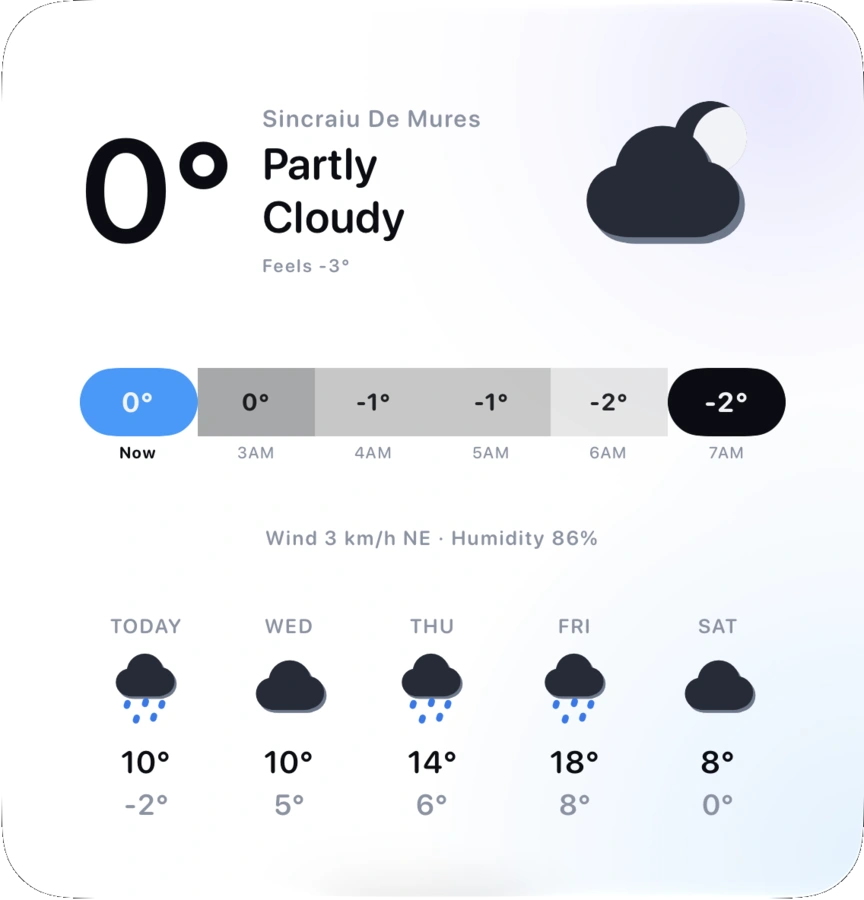
Add a widget to the Home Screen
- Touch and hold an empty spot on the Home Screen until the icons wobble.
- Tap Edit at the top left, then Add Widget.
- Search for or scroll to Magic Weather and tap it.
- Swipe through the widgets and sizes. Tap Add Widget on the one you want.
- Drag it into place and tap Done.
On iPad the steps are the same. You can also swipe right from the first Home Screen to put widgets in Today View.
Which widget to choose
| Widget | What it shows | Good for |
|---|---|---|
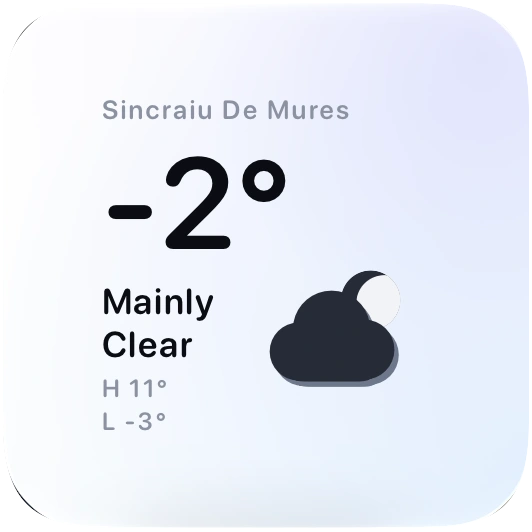
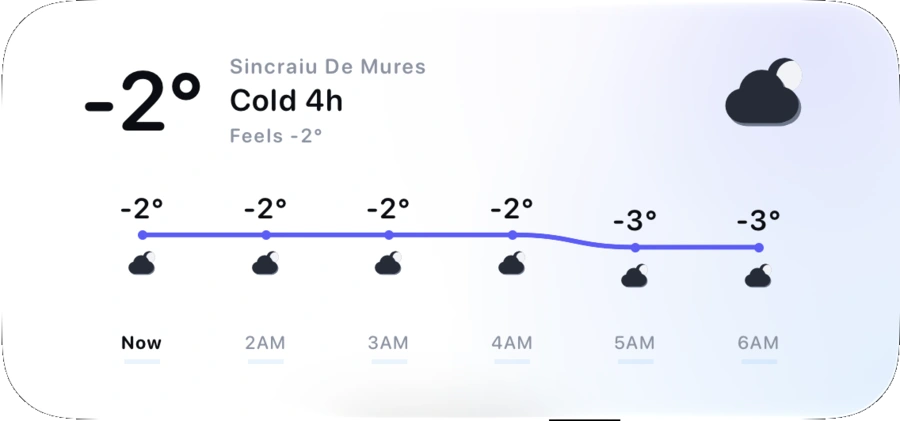
| Now | Temperature, sky and today's high and low. | A small slot when you only want the essentials. |
| Next hours | The hours ahead as a curve. | Deciding when to go out. |
| Forecast | Now, the next hours and the coming days. | One widget that covers everything. |
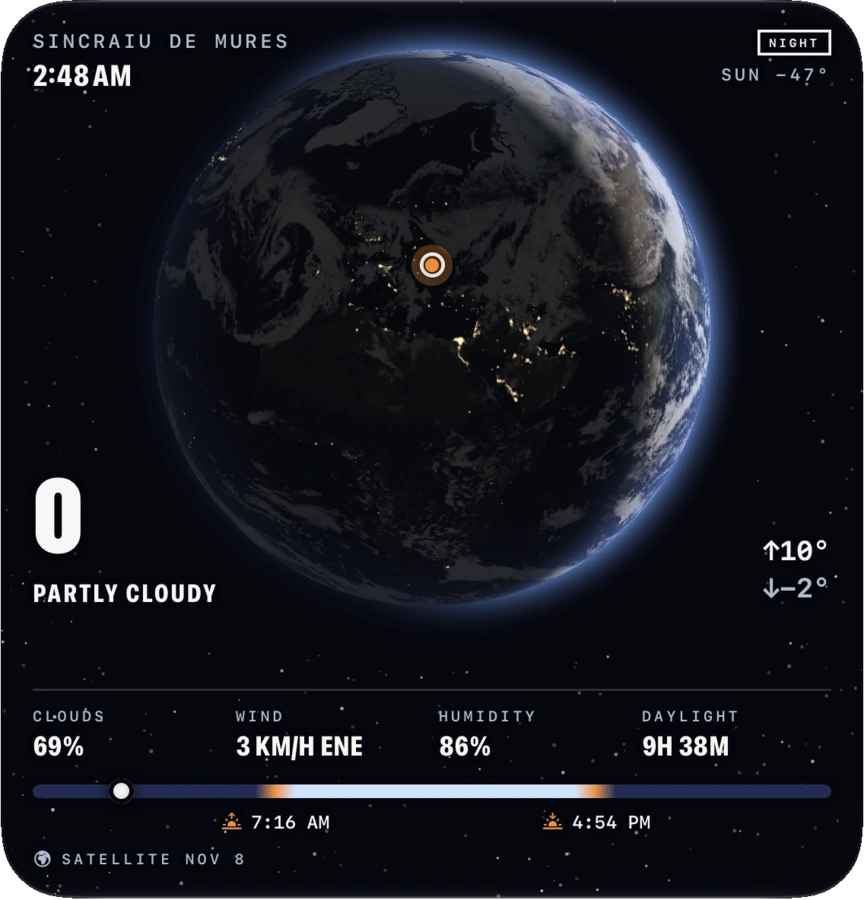
| Earth | The planet as it looks right now, with your place on it. | The best-looking thing on your Home Screen. |
| Radar | Rain around you on a map. | Showery days. |
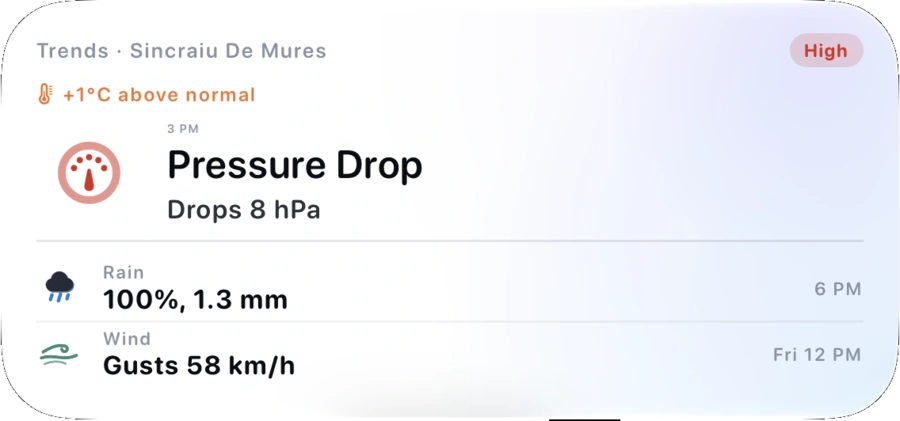
| Trends | What is changing this week. | Planning ahead. |
The gallery has more: a weathergraph, wind, UV, humidity, pressure, precipitation, beach time, migraine risk and alerts, among others.
Add a widget to the Lock Screen
- Touch and hold the Lock Screen until Customize appears. Unlock with Face ID if asked.
- Tap Customize, then choose Lock Screen.
- Tap the row under the clock, or the line above it.
- Choose Magic Weather and tap the widget you want.
- Tap Done.
Lock Screen widgets are small and use a single tint, so they suit one reading at a glance. They also show on the Always-On display.
Give a widget its own place
- Touch and hold the widget.
- Tap Edit Widget.
- Choose a Location, and an Appearance if you want it to differ from the app.
Each widget is set separately, so one can follow where you are while another shows a city you care about.
Stack widgets to save space
Drag one widget on top of another of the same size to make a stack. Swipe up or down on the stack to flip through. A stack with Forecast, Radar and Earth gives you three views in one slot, and with Smart Rotate on, iOS shows the one it thinks is most relevant.
Widgets on the Mac desktop
- Right-click the desktop and choose Edit Widgets.
- Find Magic Weather in the list.
- Drag a widget onto the desktop.
This needs macOS 14 or later. Widgets from your iPhone can also appear in the list when your Mac and iPhone are signed in to the same Apple Account, even if the Mac app is not installed. Desktop widgets fade when a window is in front, so they stay out of the way.
Widgets follow your theme
Magic Weather widgets take the theme you picked in the app. Change the theme from the layout button on the Forecast tab and the widgets change with it. The Appearance option in Edit Widget lets you override that for a single widget. If you prefer the Home Screen tinted or in dark mode, the widgets adapt to that as well.
If a widget looks out of date
iOS controls how often widgets refresh, to protect the battery. If one seems stuck:
- Open the app once. This fetches fresh data and tells iOS the widget has something new.
- Check Background App Refresh in Settings › General › Background App Refresh.
- Check location access in Settings › Privacy & Security › Location Services › Magic Weather.
- Low Power Mode slows background updates. Expect longer gaps while it is on.
- Still stuck? Remove the widget and add it again.
Beyond widgets
- Live Activities appear by themselves on the Lock Screen and in the Dynamic Island when rain or a storm is on the way. How they work.
- Apple Watch has complications for its watch faces. The Watch guide.
- The app icon can show the current temperature as a badge.
Common questions
Why is my weather widget not updating?
iOS decides when widgets refresh. Open the app once to give it fresh data, check that Background App Refresh is on in Settings › General, and make sure the app is allowed to use your location. Low Power Mode also slows widget updates.
Can I put a weather widget on my Lock Screen?
Yes. Touch and hold the Lock Screen, tap Customize, choose Lock Screen, then tap the row under the clock to add small Magic Weather widgets.
Do the widgets work on Mac?
Yes. On macOS 14 or later, right-click the desktop and choose Edit Widgets. Widgets from the Mac app appear there, and widgets from your iPhone can appear too when both devices use the same Apple Account.
Can a widget show a different city?
Yes. Touch and hold the widget, tap Edit Widget and choose a location. Each widget can show a different place, so you can keep home and a second city side by side.
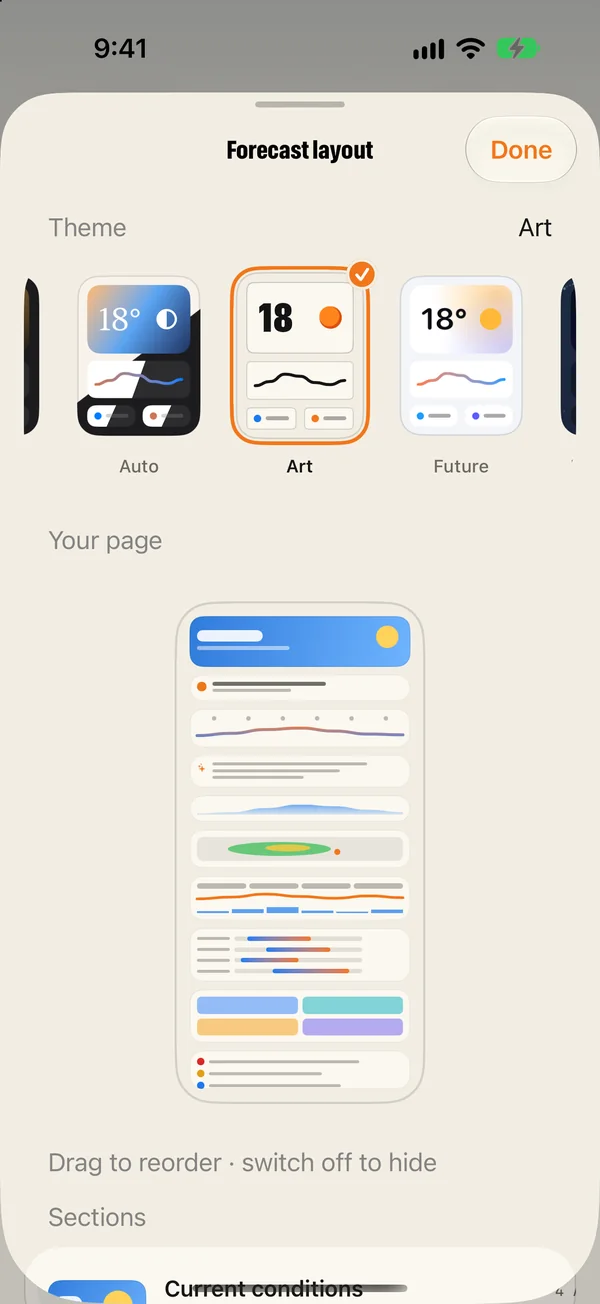
Make it yours: themes, layout and app icons in Magic Weather
Choose from eight themes, reorder or hide sections of the Forecast page, pick your detail tiles and change the app icon. A guide to making it yours.
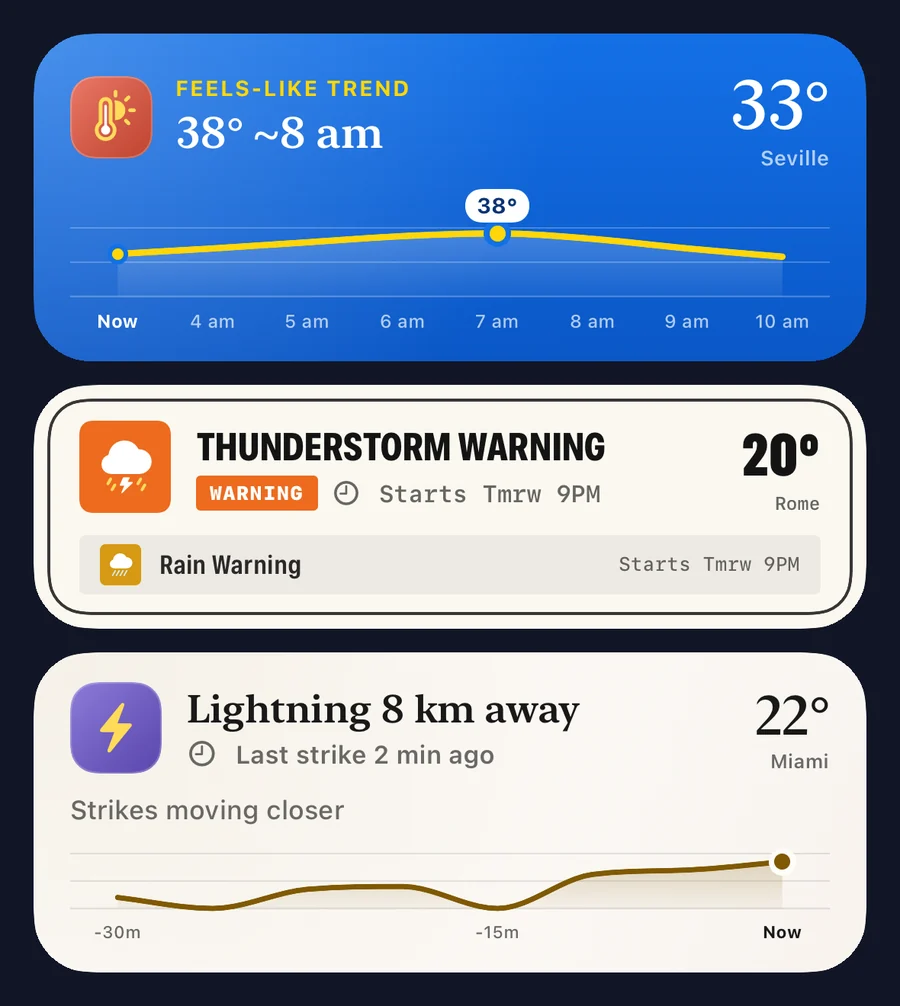
Weather in the Dynamic Island: how Live Activities follow the rain
Magic Weather's Live Activities put rain, wind, heat, lightning and warnings on your iPhone Lock Screen and Dynamic Island until the weather has passed.
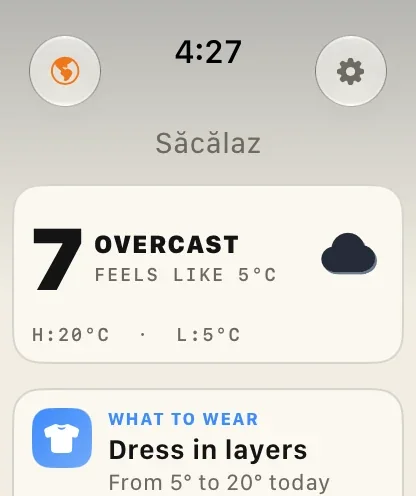
Magic Weather on Apple Watch: the forecast, the Earth and radar on your wrist
What the Magic Weather Apple Watch app shows, how to add complications to your watch face, and how it works on its own without your iPhone.