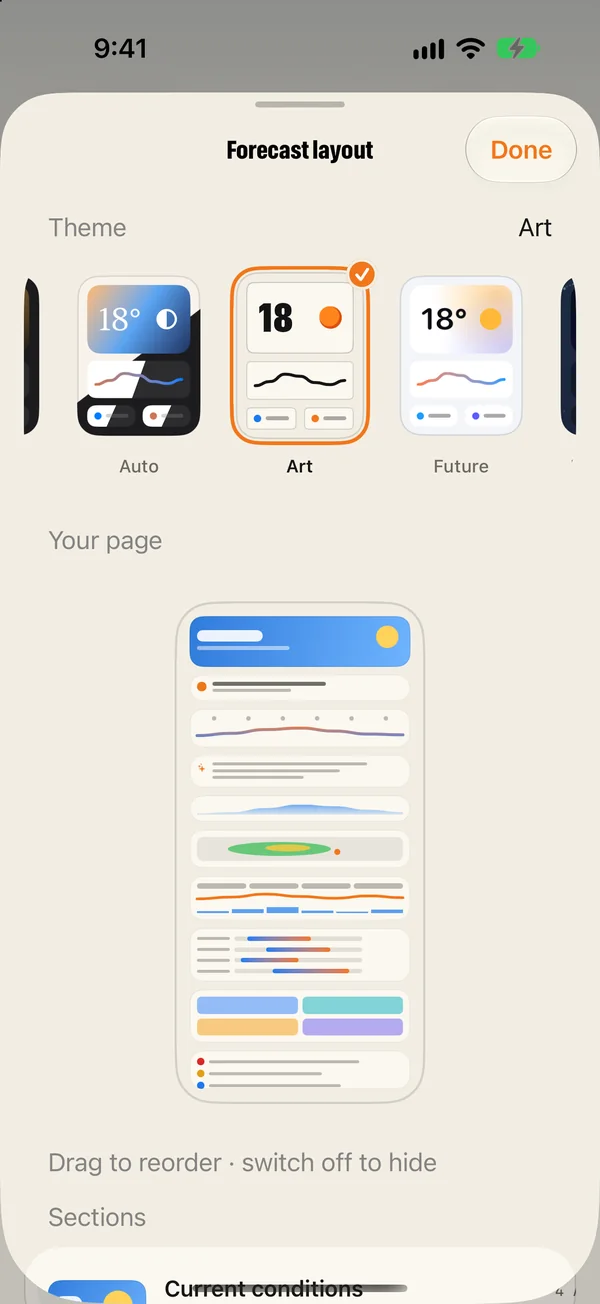
Tap the layout button beside Settings on the Forecast tab. The first row is the themes: tap one and the whole app changes at once. Scroll down in the same sheet to reorder the sections of the Forecast page, switch off the ones you do not want, and choose which detail tiles to show. Themes and the fifteen app icons are also in Settings › Appearance.
The eight themes
A theme is more than a colour scheme. Each one has its own way of drawing the top of the Forecast page, its own charts and its own type.
| Theme | Character |
|---|---|
| Light | Clean and bright. The familiar look. |
| Dark | The same, for the evening. |
| Auto | Follows the sky. Its colours change with the time of day and the weather. |
| Art | Poster ink on warm paper, with bold condensed type. |
| Future | Rounded and airy, with soft gradients. |
| Deep Space | Dark, with a technical typeface and a starfield. |
| Candy | Bright blue and sunny yellow. |
| AMOLED | True black, for OLED screens and low light. |
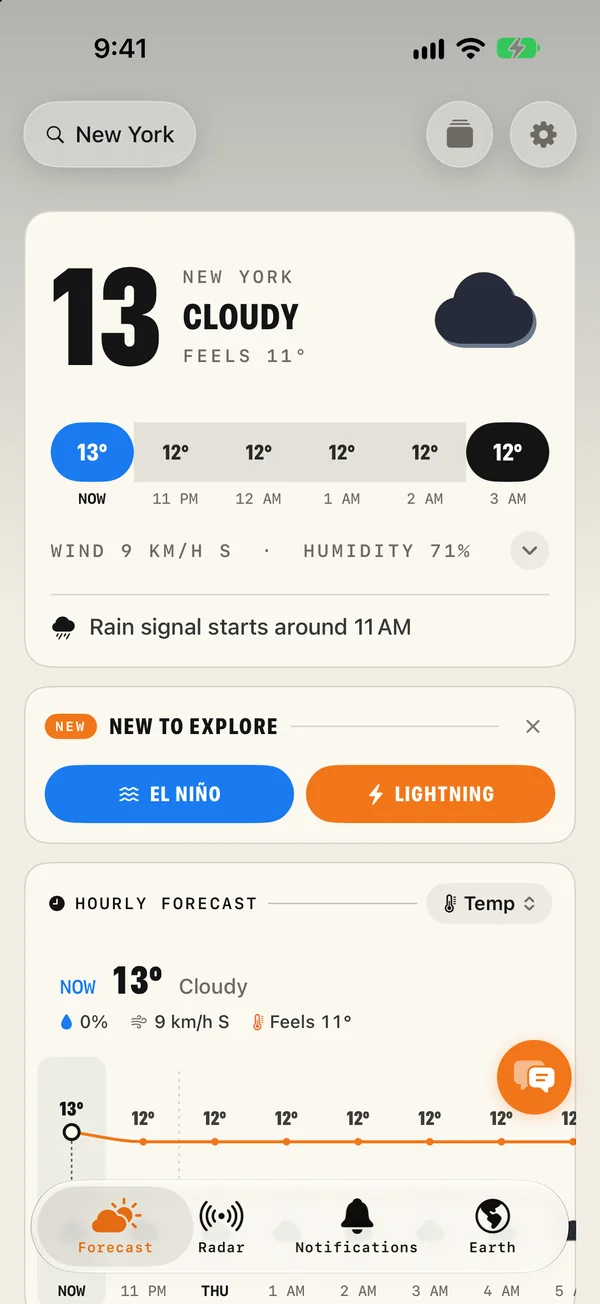
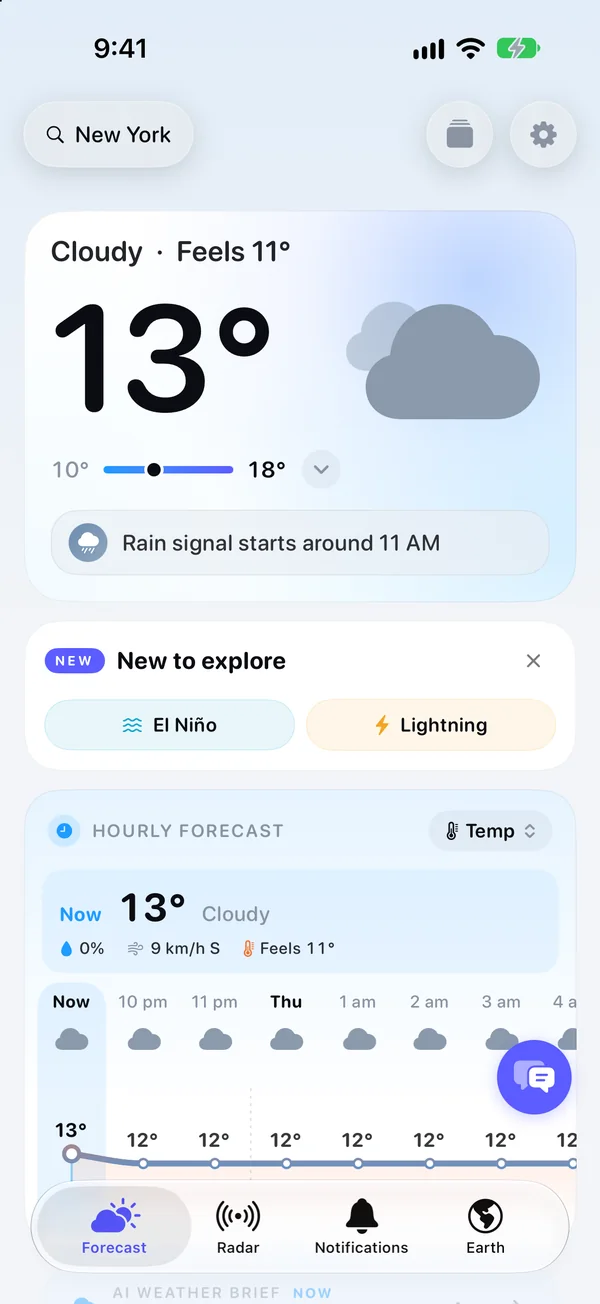
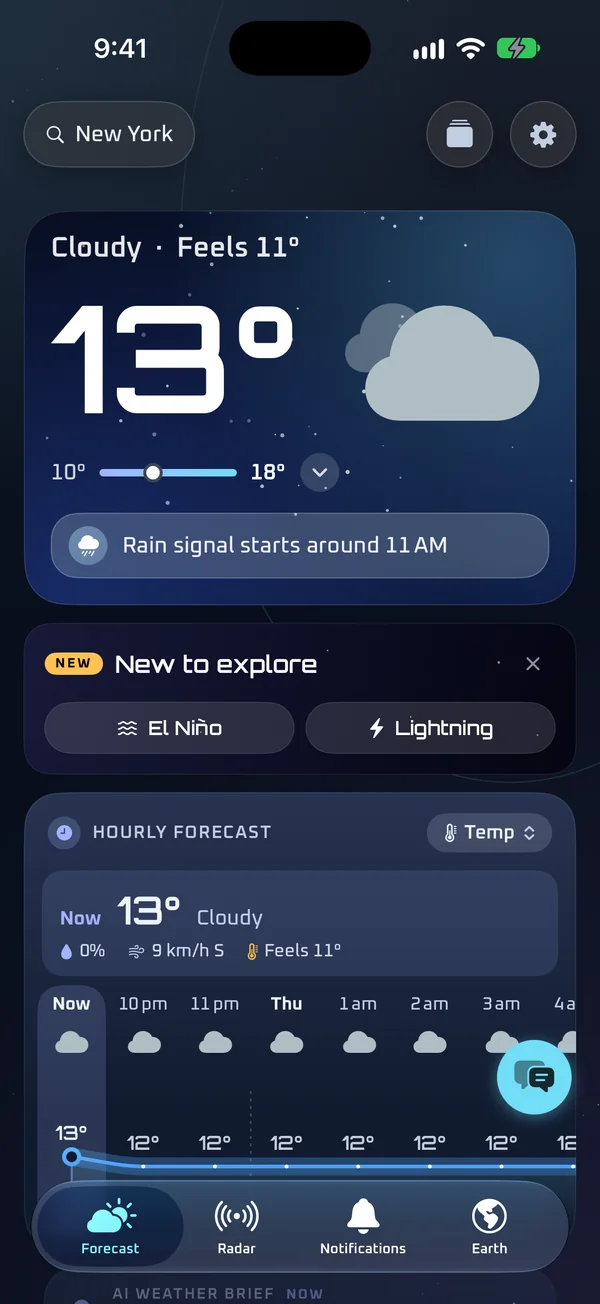
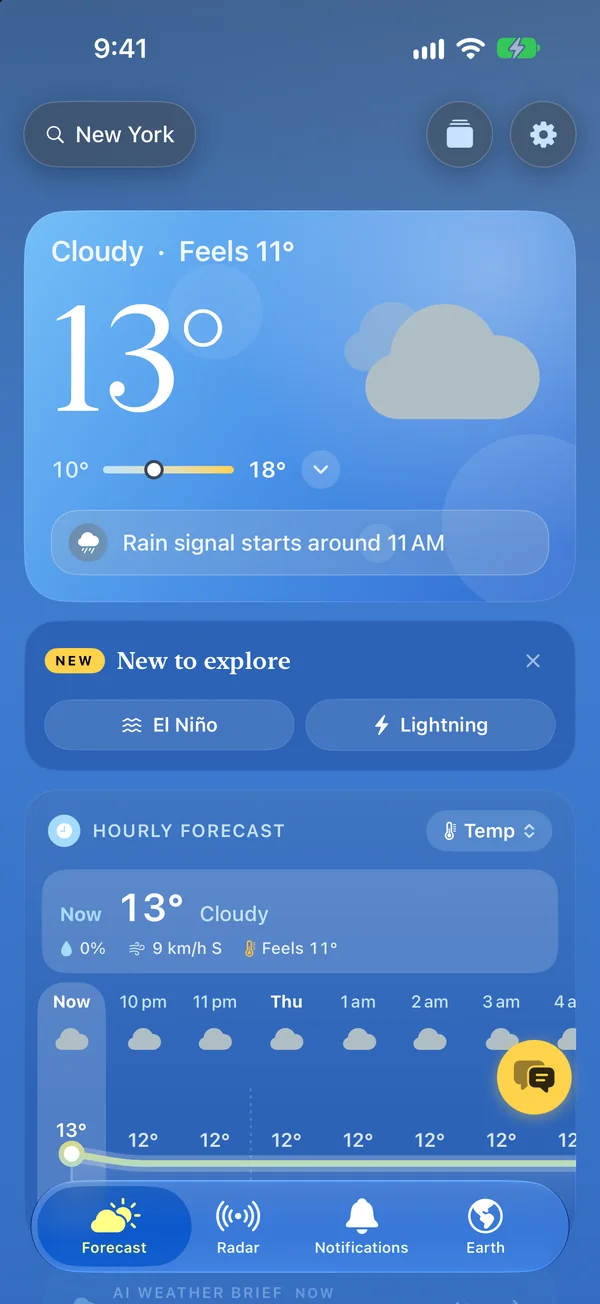
Change the theme
- On the Forecast tab, tap the layout button beside Settings.
- The first row shows the themes as little pages. Swipe the row to see all eight.
- Tap one. The whole app changes at once. A ring and a tick mark the one in use.
- Tap Done. Your choice is already saved.
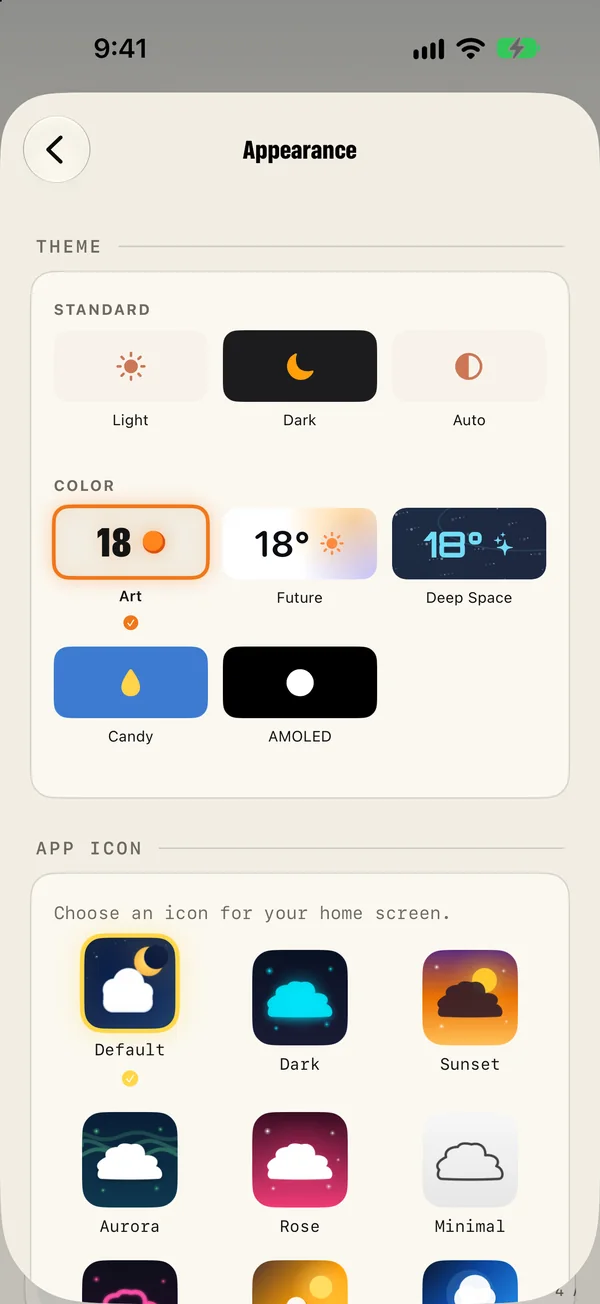
The same themes are in Settings › Appearance, grouped as Standard (Light, Dark, Auto) and Colour (Art, Future, Deep Space, Candy, AMOLED).
What follows the theme
- The whole app: Forecast, Radar, Notifications and Settings.
- Widgets on the Home Screen, Lock Screen and Mac desktop.
- Live Activities on the Lock Screen and in the Dynamic Island.
- The Apple Watch app.
- The Mac app, including its sidebar and top bar.
Rearrange the Forecast page
Below the themes, the layout sheet shows a miniature of your Forecast page. It updates as you make changes.
- Scroll down to Sections. Every part of the page is listed with a small picture of what it is.
- Tap a row to light it up in the miniature, so you can see which block it is.
- Switch a section off to remove it from the page.
- Drag the handle up or down to reorder.
Weather Trends stays last on the page, so it has no handle. Everything else is yours to arrange.
Some layouts that work
- At a glance: current conditions, hourly forecast, the week. Switch the rest off.
- Planner: weathergraph first, then the week and Weather Trends.
- Outdoors: hourly forecast, then detail tiles with wind, UV and visibility at the top.
- Everything: leave it all on and put what you read most at the top.
Choose your detail tiles
Detail tiles are the small cards below the week: wind, humidity, pressure, dew point, air quality and more.
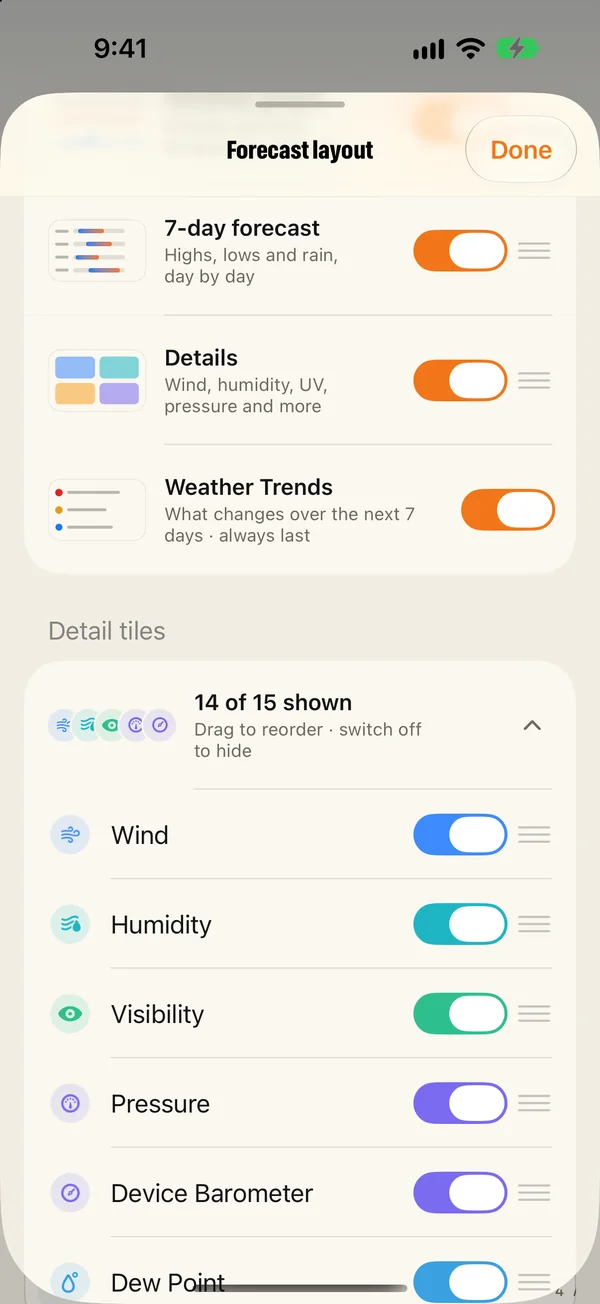
- In the layout sheet, find Detail tiles. It is folded into one row that says how many are showing.
- Tap it to open the list.
- Switch off the tiles you never look at.
- Drag to put the ones you care about first.
The tiles available include wind, humidity, visibility, pressure, device barometer, dew point, air quality, UV, cloud cover, sunrise, sunset, outdoor comfort, beach time, migraine risk and normal temperatures.
Change the app icon
Settings › Appearance has fifteen icons for your Home Screen, from the default to dark, sunset, aurora, minimal and more. Tap one to switch. The app icon can also carry the current temperature as a badge.
Units and language
These live in Settings › General. Temperature, wind, pressure and precipitation each have their own unit, and the app's language can be set separately from your phone's.
See them all before you choose
The interactive guide shows the same screen in each of the eight themes. Tap the names to compare.
Common questions
How do I change the theme?
Tap the layout button beside Settings on the Forecast tab and tap a theme in the first row. Themes are also in Settings › Appearance.
Does the theme change the widgets too?
Yes. Widgets, Live Activities and the Apple Watch app follow the theme you chose in the app.
How do I hide part of the Forecast page?
Open the layout sheet, scroll to Sections and switch the section off. Drag the handles to reorder the rest.
How do I change the app icon?
Open Settings › Appearance and choose one of the fifteen icons under App icon.
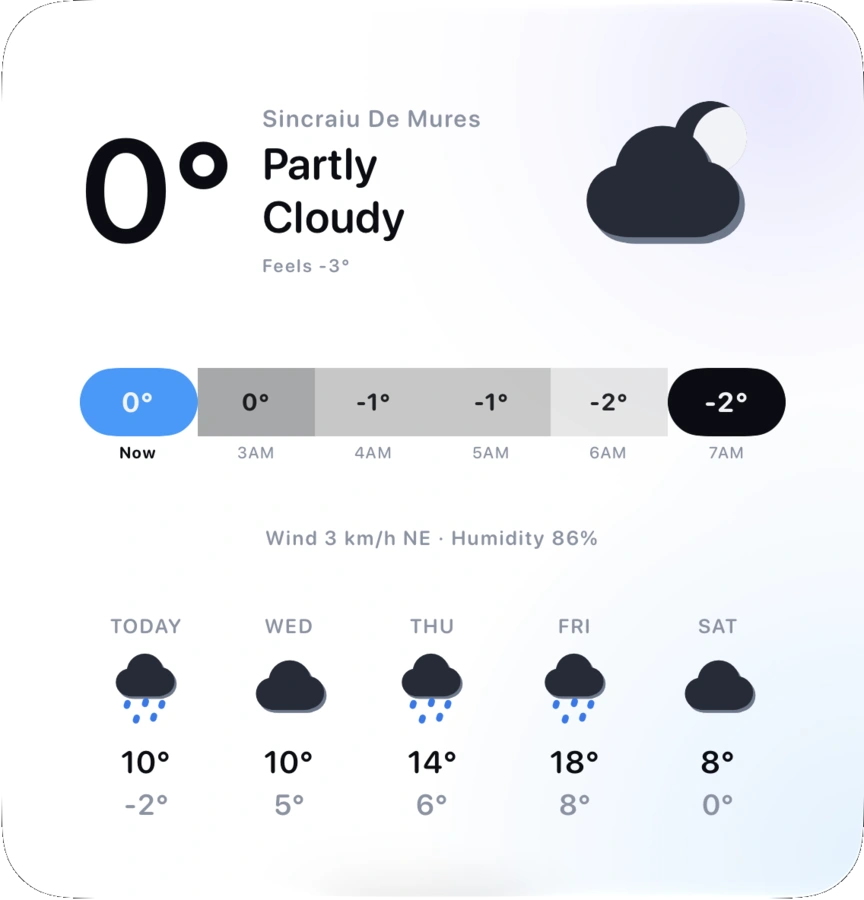
How to add weather widgets to your iPhone Home Screen and Lock Screen
Add Magic Weather widgets to your iPhone Home Screen, Lock Screen and Mac desktop: step-by-step, with what each widget shows and fixes if one is stale.
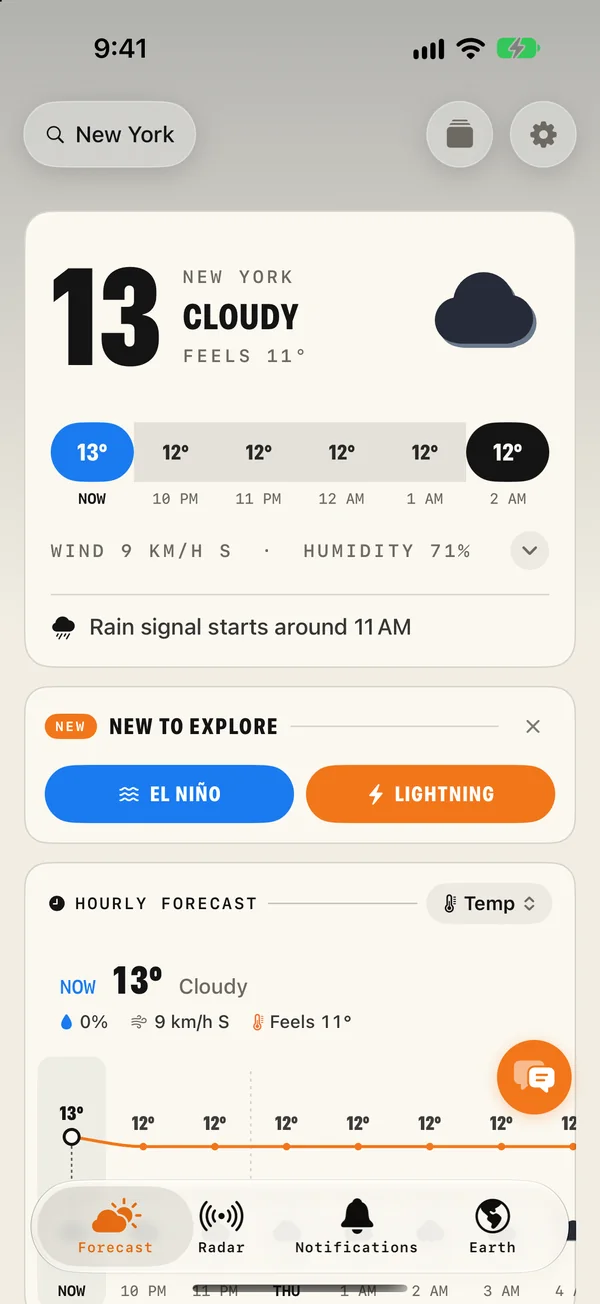
Getting started with Magic Weather: your first ten minutes
Install Magic Weather, set your place, turn on alerts, pick a theme and add a widget. A ten-minute setup guide for iPhone, iPad, Mac, Watch and TV.
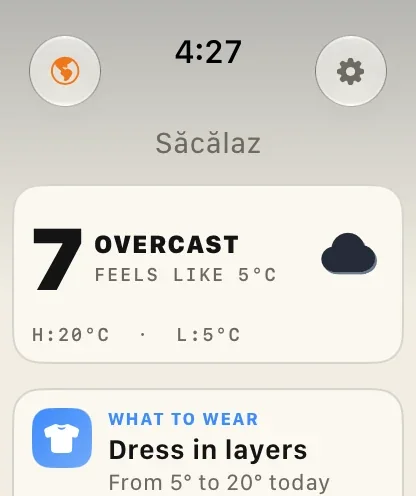
Magic Weather on Apple Watch: the forecast, the Earth and radar on your wrist
What the Magic Weather Apple Watch app shows, how to add complications to your watch face, and how it works on its own without your iPhone.