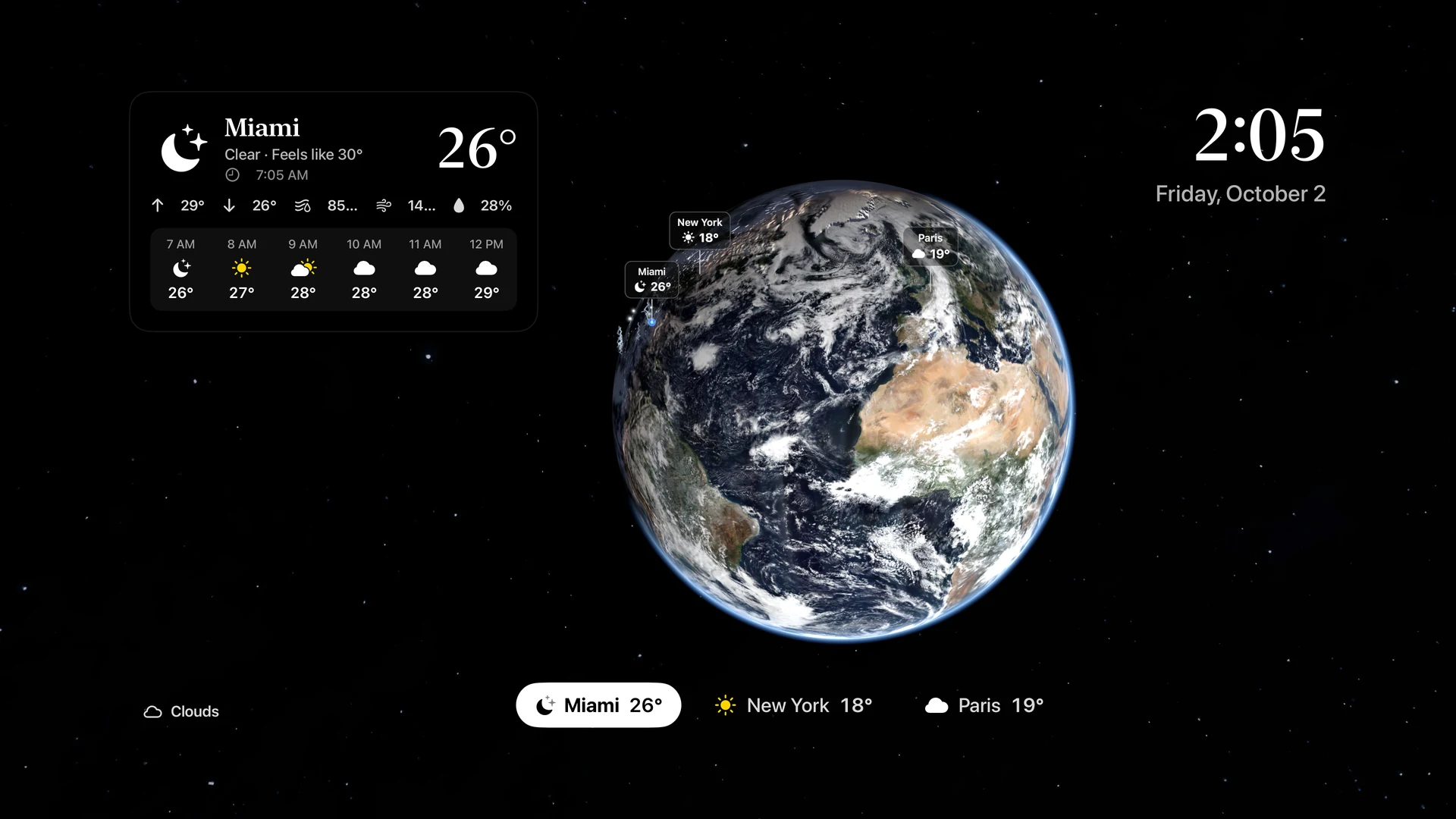
Open the Earth tab in Magic Weather and tap the clock button at the bottom left. The Earth becomes a bedside clock with a weather card. Between 10 PM and 7 AM it switches to a dimmed night face. It also starts by itself when you put the iPhone on a charger, held sideways, with the Earth tab open. Tap the screen and choose Leave Nightstand to exit.
Start it
- Open the Earth tab.
- Tap the clock button in the row at the bottom left, beside the Apple TV and pause buttons.
- Put the iPhone on its charger, upright or sideways.
To leave, tap the screen. A Leave Nightstand button appears for a few seconds.
Day and night
| Day face | Night face (10 PM to 7 AM) | |
|---|---|---|
| Earth | Full brightness, turning slowly | Kept, but dimmed |
| Clock | Large, with the date | Soft white, easy on dark-adapted eyes |
| Weather | A weather card for your place | One short line |
| Screen | Normal brightness | Turned down low, and restored in the morning |
Upright, the clock sits at the top and the weather at the bottom. Sideways, the clock and the card sit on the left, with the planet beside them on the right.
It starts by itself
If the Earth tab is open and you put the iPhone on a charger, held sideways, Nightstand starts on its own. It only does this at the moment you connect the charger, so leaving Nightstand does not make it reappear.
Gentle on the battery and the screen
- Charging only. The screen stays awake only while the iPhone is charging.
- Lower frame rate. The Earth turns at a reduced frame rate in Nightstand, and lower still at night.
- Burn-in protection. The clock, the card and the planet drift by a few pixels over time, so nothing stays in exactly the same place all night. This matters on OLED screens.
Nightstand and StandBy
iOS has its own bedside mode, StandBy, which appears when a locked iPhone is charging on its side. The two do different things:
- StandBy is system-wide and shows widgets, including Magic Weather widgets, while the phone is locked.
- Nightstand runs inside Magic Weather while it is open, and shows the live Earth, turning, with the clock and your weather.
Use whichever suits you. If you like StandBy, add the Magic Weather Earth widget to it and you get a still picture of the planet there too.
On iPad
Nightstand works the same way on iPad, and suits one on a stand in the kitchen or on a desk as much as beside the bed.
The same look as the TV
Nightstand uses the clock and weather card from the Apple TV app. If you like it on the bedside table, it is worth seeing on the living-room screen.
Common questions
How do I start Nightstand?
Open the Earth tab and tap the clock button in the row at the bottom left. It also starts by itself when you put the iPhone on a charger and hold it sideways while the Earth tab is open.
Will Nightstand keep my screen on all night?
Only while the iPhone is charging. Off the charger, the screen locks as usual.
Is Nightstand the same as StandBy?
No. StandBy is Apple's own mode that appears when a locked iPhone is charging on its side. Nightstand runs inside Magic Weather while the app is open, and shows the live Earth with your weather.
Does it work on iPad?
Yes. Nightstand works on iPhone and iPad, upright or sideways.
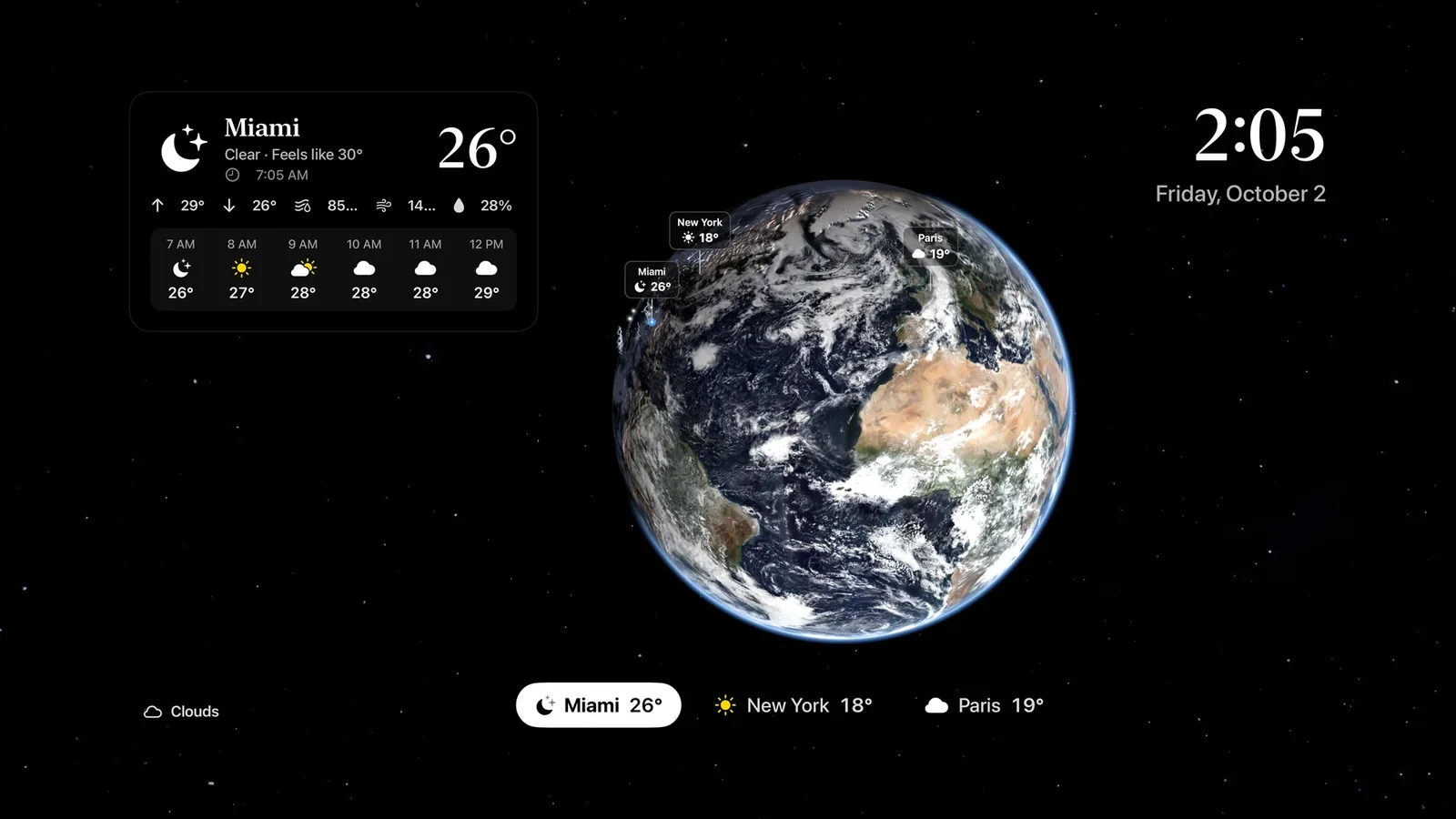
A live Earth on your TV: the Magic Weather Apple TV app
Put a photoreal, slowly turning Earth with real clouds on your TV. A guide to the Magic Weather Apple TV app: layers, storms, cities, sounds and the remote.
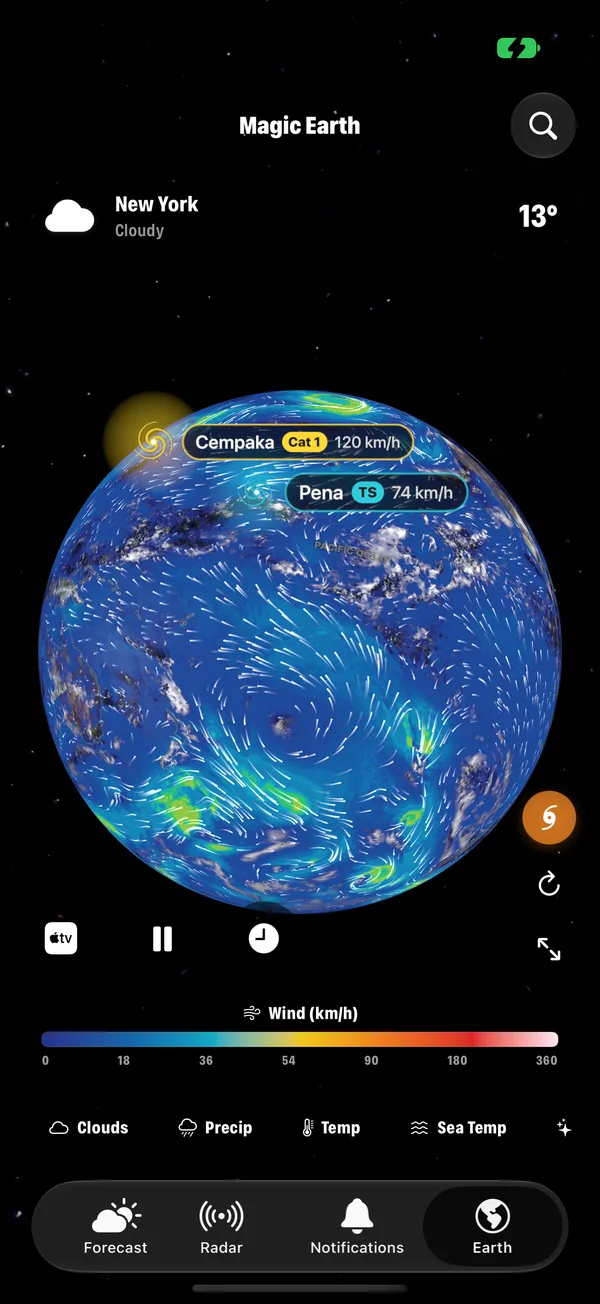
Every Earth layer in Magic Weather, explained
Clouds, rain, temperature, wind, pressure, sea temperature, aurora, UV, ozone, satellites, earthquakes and fires: what each Magic Weather layer shows.
Getting started with Magic Weather: your first ten minutes
Install Magic Weather, set your place, turn on alerts, pick a theme and add a widget. A ten-minute setup guide for iPhone, iPad, Mac, Watch and TV.