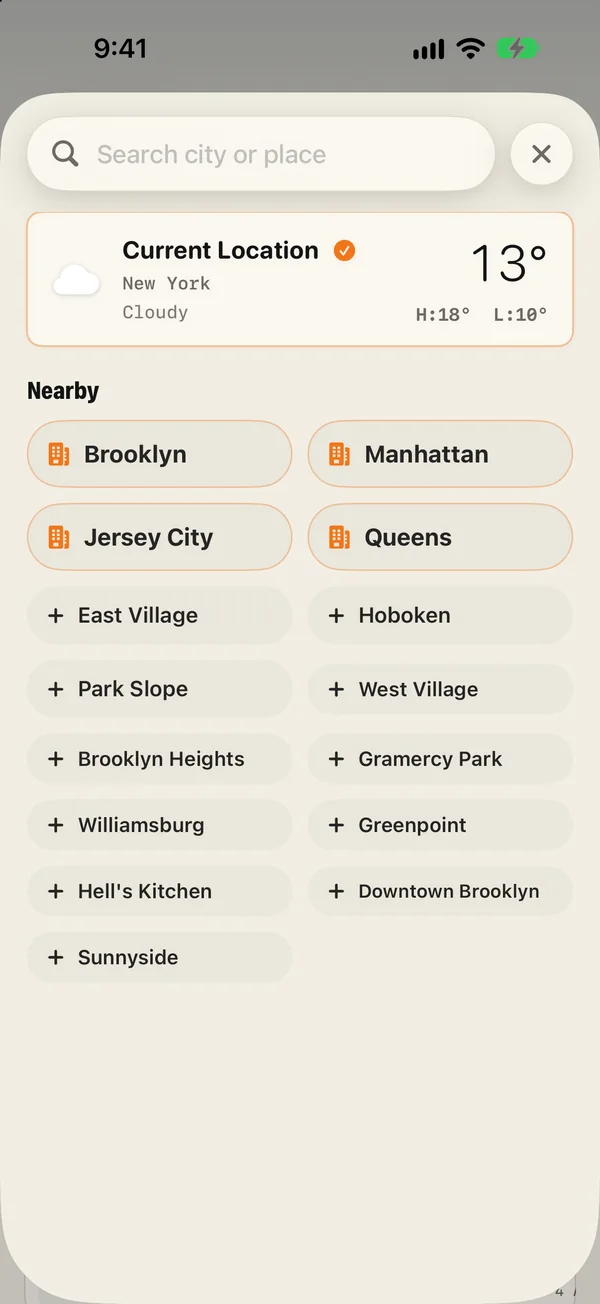
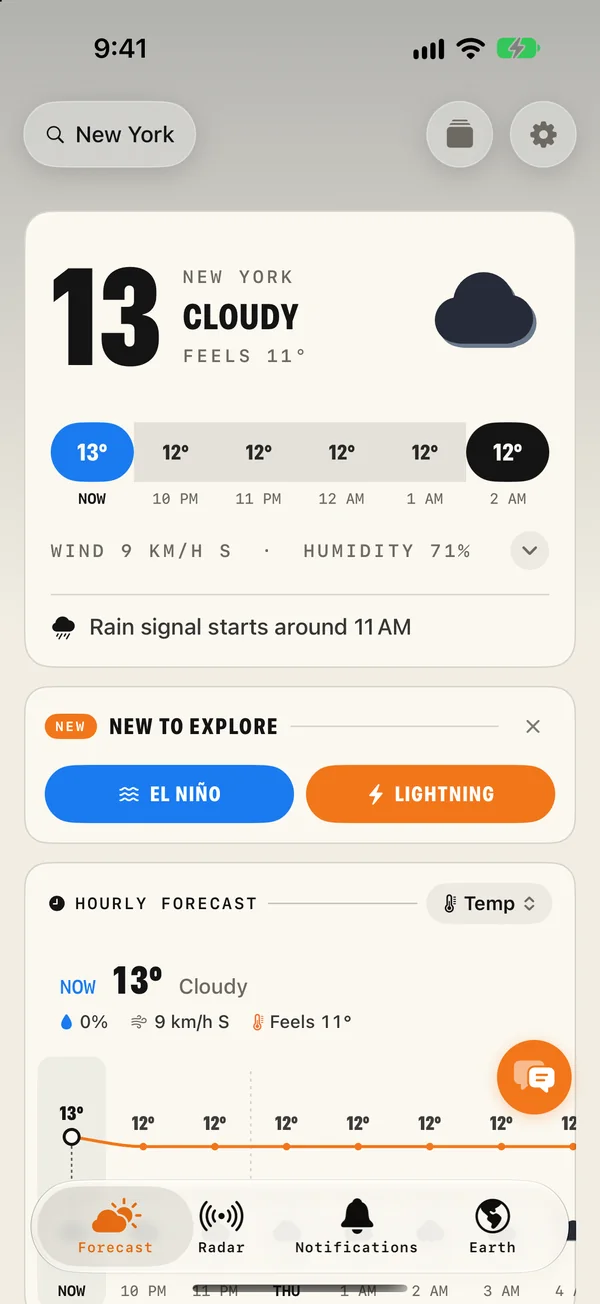
Tap the place name at the top of the Forecast tab. Search for a city, or pick one from the Nearby list, and tap + to save it. Saved places appear in the same sheet with their own weather: tap one to switch to it. Tap Current Location to go back to where you are.
Add a place
- On the Forecast tab, tap the place name at the top left.
- Type a city or a place, anywhere in the world. Or pick from Nearby, which lists the towns and districts around you.
- Tap the + to save it.
Saved places appear in the list with their own temperature and sky, so the sheet itself becomes a small overview.
Switch between places
- Tap a saved place to see its forecast. The whole app follows: Forecast, Radar and the Earth all move to it.
- Tap Current Location at the top of the list to go back to where you are.
- On Mac, your places sit in the sidebar. Click to switch, and drag to reorder.
Current Location, and what it follows
Current Location is a special entry. It moves with you, so when you travel the forecast, the radar and the alerts all change to where you are, without you doing anything.
If you prefer not to share your location, you can leave it off and use saved places only. The app works the same way.
Just looking: places you do not need to save
- Search and tap the name to view a place without saving it.
- On the Radar tab, tap anywhere on the map to read the weather at that exact spot: rain chance, amount and wind.
- On the Earth tab, use the search button to find any city and fly to it, or tap the globe on a data layer to read the value there.
See which places have warnings
A triangle beside a saved place means it has an active weather alert. You can see it in the places sheet on iPhone and in the sidebar on Mac, without opening each place in turn.
Tap the place and the alert appears above its forecast. This is the quickest way to keep an eye on family in another city, or on a destination before you travel.
More on severe weather alerts.
A different place in each widget
Each widget can show its own place. Touch and hold a widget, tap Edit Widget and choose a location. Many people keep one widget on Current Location and a second on the city they visit most.
Places on your other devices
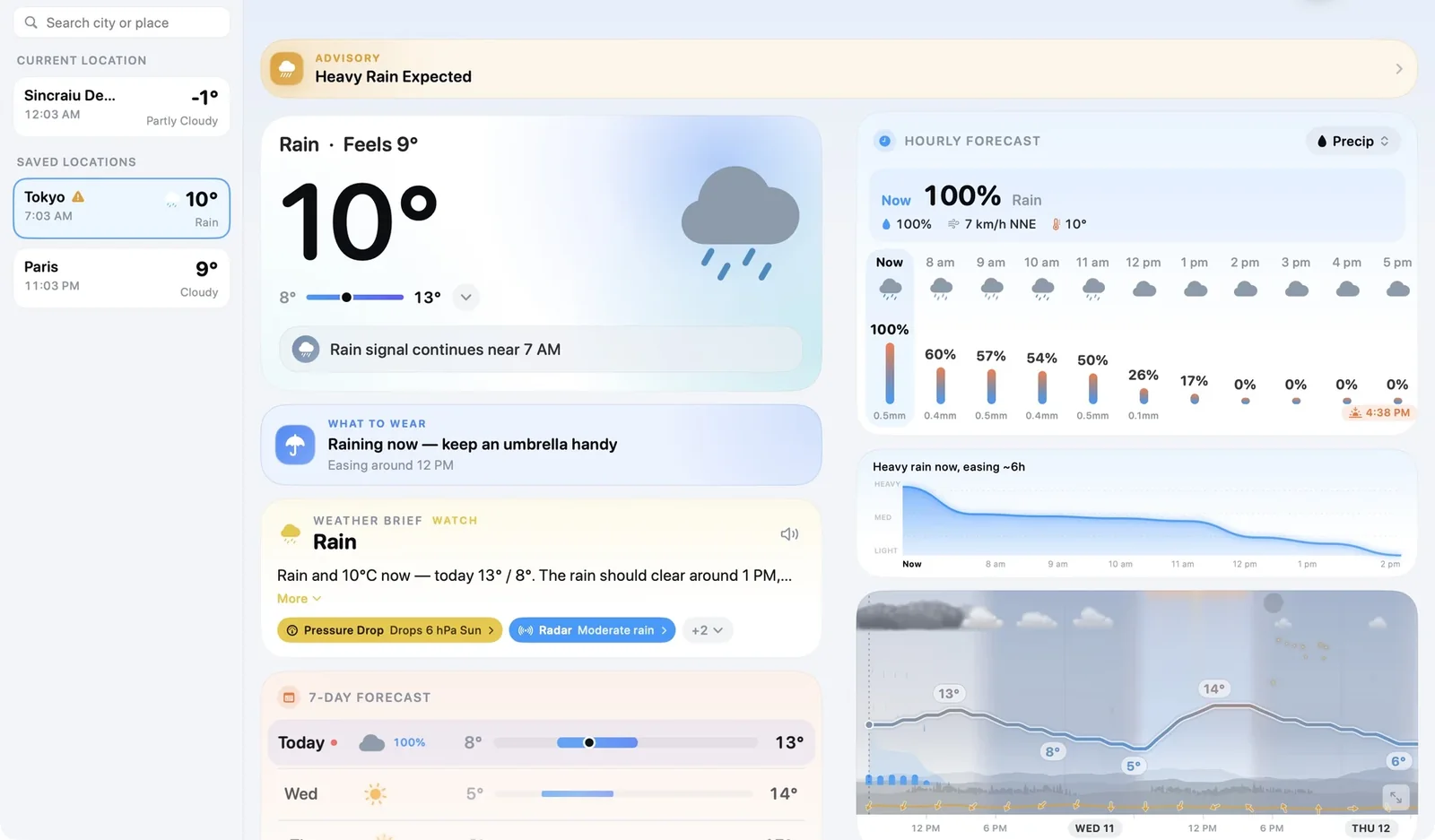
- Mac: the sidebar lists Current Location with its local time and weather, then your saved places. A search field at the top adds more.
- Apple TV: your cities appear in a strip along the bottom. Move between them with the remote and the Earth flies to the one you pick.
- Apple Watch: the watch follows your location.
A list that works
A short list is more useful than a long one. A good starting set:
- Home, if it is not always where you are.
- Work, if it is in a different town. Weather can differ a lot over 30 kilometres.
- Family and close friends. You will know what to ask about when you call.
- Your next trip. Add it a week before you go, and remove it when you are back.
- One place you just like. A mountain, a beach, a city you miss.
Before a trip
- Save the destination a week ahead and glance at it each day. The forecast firms up as the date gets closer.
- Look at the weathergraph for the days you will be there, to see the shape of each day and not just an icon.
- Check for a triangle the day before you leave.
- Leave location on Always, so that alerts switch to the new place when you arrive.
Common questions
How do I add another city?
Tap the place name at the top of the Forecast tab, search for the city and tap the + beside it. It is saved to your list.
How do I go back to my current location?
Open the places sheet and tap Current Location at the top of the list.
Can I see the weather for somewhere without saving it?
Yes. Search for it and tap its name to view it. On the Earth and Radar tabs you can also tap any point on the map to read the weather there.
What does the triangle beside a place mean?
A triangle marks a saved place that has an active weather alert. Tap the place to see the details at the top of its forecast.
Getting started with Magic Weather: your first ten minutes
Install Magic Weather, set your place, turn on alerts, pick a theme and add a widget. A ten-minute setup guide for iPhone, iPad, Mac, Watch and TV.
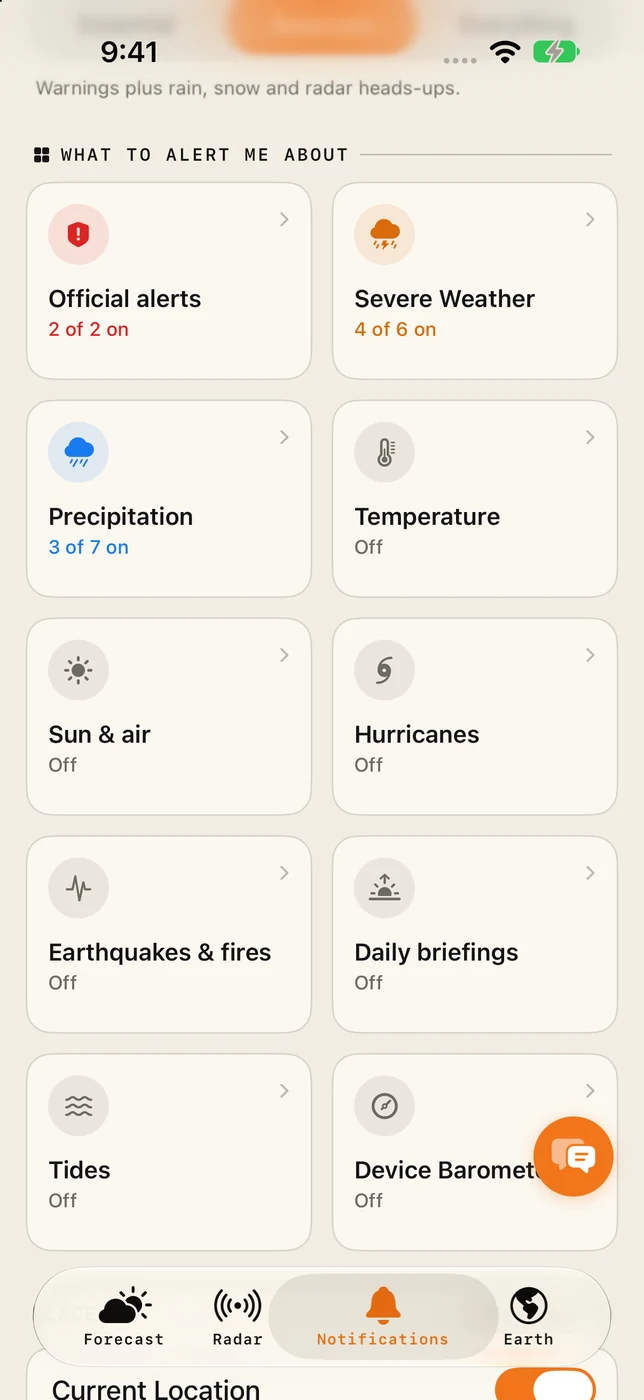
Severe weather alerts on iPhone: how to set them up properly
Set up severe weather alerts on iPhone with Magic Weather: official warnings, storms, lightning, wind and hurricanes, for home and every place you watch.
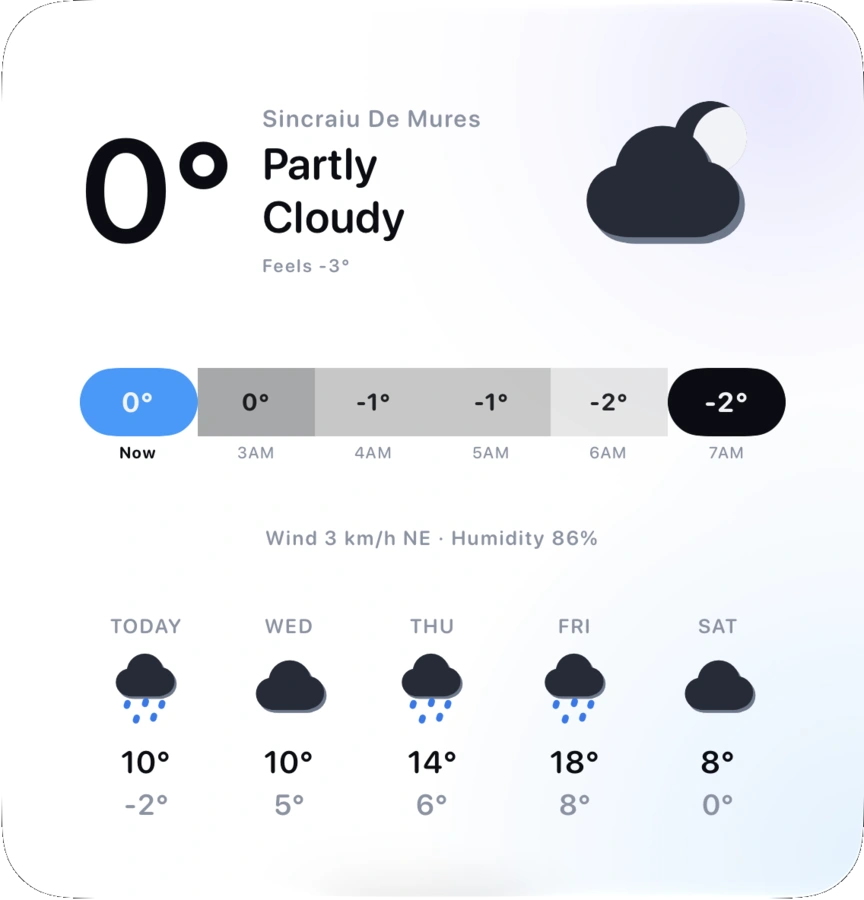
How to add weather widgets to your iPhone Home Screen and Lock Screen
Add Magic Weather widgets to your iPhone Home Screen, Lock Screen and Mac desktop: step-by-step, with what each widget shows and fixes if one is stale.