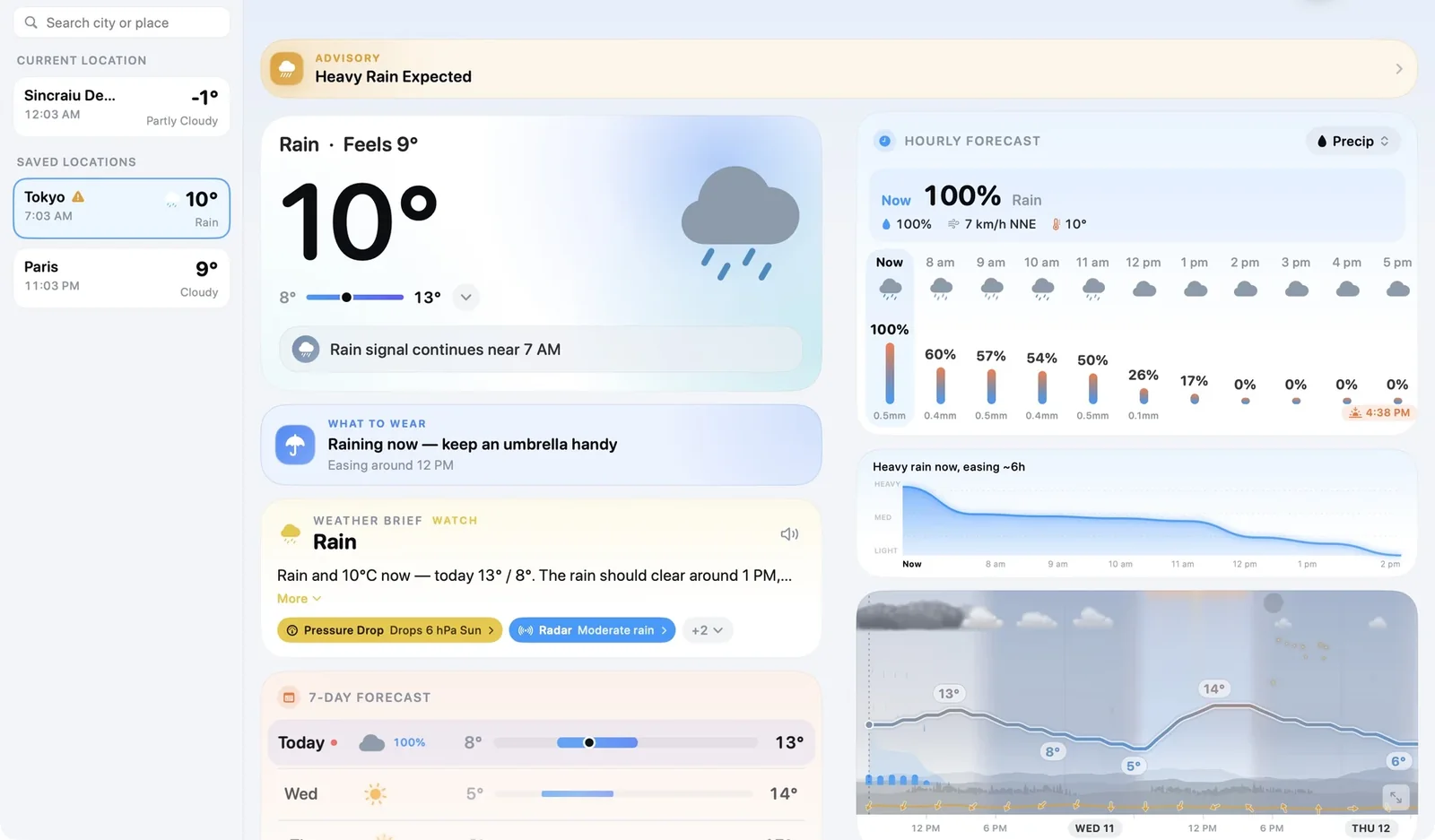
Install Magic Weather from the Mac App Store (macOS 14 or later). The current temperature and sky sit in the menu bar; click them for quick actions. The main window has your places in a sidebar, the tabs in the top bar, and a forecast that spreads into two columns on a wide window. On the Earth tab, drag or use two fingers on the trackpad to turn the globe.
Install it
Get Magic Weather from the Mac App Store. It needs macOS 14 Sonoma or later, and runs natively on both Apple silicon and Intel. It is the same purchase as on iPhone. If you installed an older downloaded version, drag it from Applications to the Trash and install from the App Store, which keeps it up to date.
The menu bar
The temperature and sky stay in the menu bar while you work. Click them for a menu:
| Action | Shortcut |
|---|---|
| Open Magic Weather | ⌘ O |
| Refresh the weather | ⌘ R |
| Settings | ⌘ , |
| Quit | ⌘ Q |
The window
- The sidebar lists Current Location with its local time and weather, then your saved places. Click to switch, drag to reorder, and use the search field at the top to add more. A triangle marks a place with an active alert.
- The top bar holds the tabs: Forecast, Radar, Notifications and Earth.
- The Forecast spreads into two columns when the window is wide, so more fits without scrolling.
Reading the forecast with a pointer
- Hover over the hourly forecast or the weathergraph to read any hour.
- Scroll sideways on the weathergraph to travel through the week.
- Click a day in the week to open its hour-by-hour chart.
- The weather brief has a button to hear it read aloud. On Macs with Apple Intelligence it is written on the device. How the brief works.
The Earth on a big screen
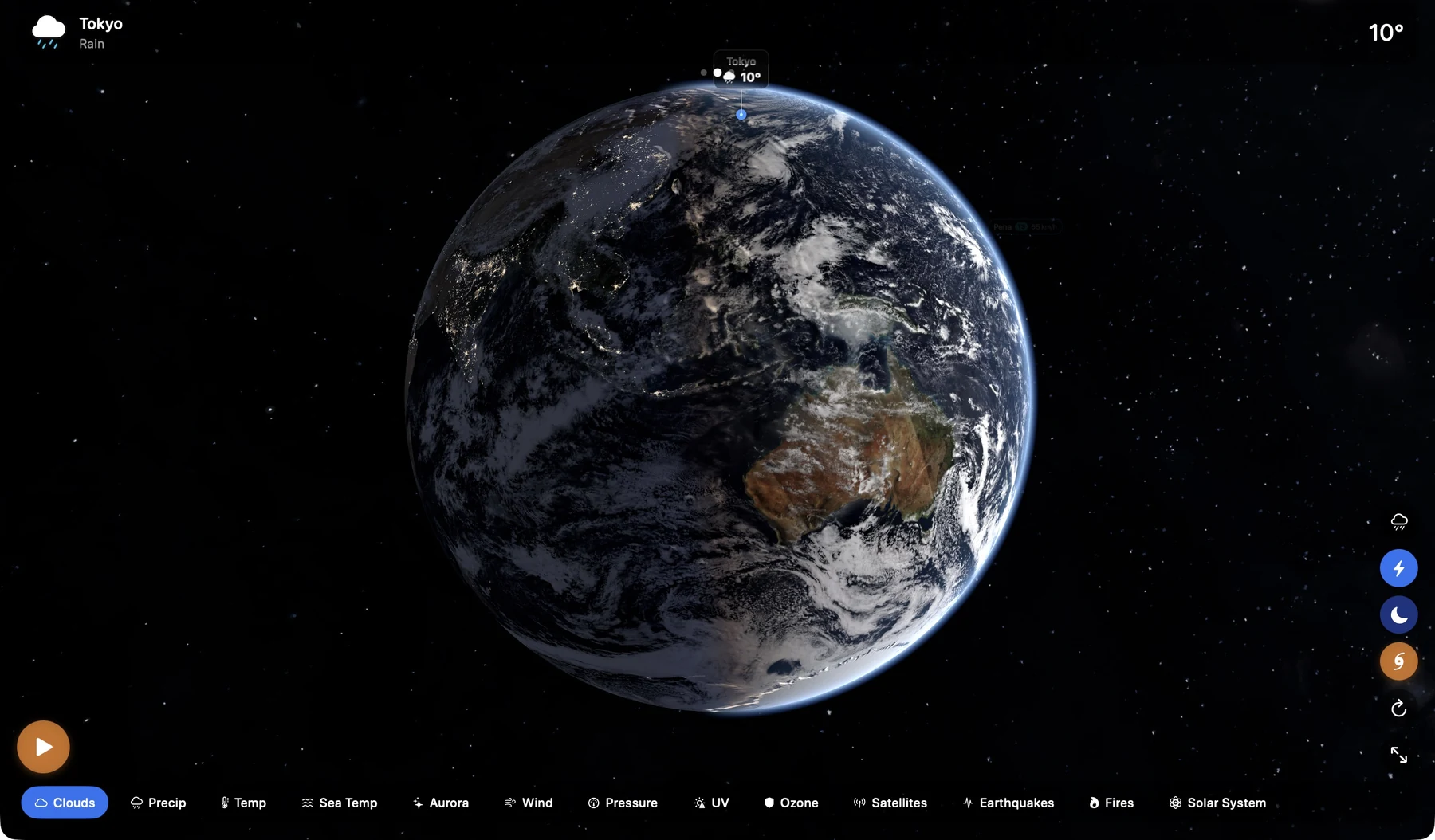
- Drag with the mouse, or move two fingers on the trackpad, to turn the globe.
- Pinch on the trackpad, or scroll, to zoom.
- Layers sit along the bottom: clouds, rain, temperature, wind, pressure, aurora, UV, ozone, satellites, earthquakes, fires and the solar system. What each one shows.
- Storms are on the globe. Click one to follow it. How to track storms.
Widgets on the desktop
Right-click the desktop, choose Edit Widgets, find Magic Weather and drag a widget out. The Earth widget looks particularly good on a large display. More on widgets.
What is different from iPhone
- No device barometer. Macs have no pressure sensor, so the barometer tile and storm alert are iPhone and Apple Watch only.
- No Nightstand or AirPlay TV button. These are part of the iPhone and iPad Earth tab.
- Everything else is the same: the forecast, radar, alerts, themes and Premium.
Themes on Mac
The theme you choose colours the whole window, including the sidebar, the top bar and the Settings window. More on themes.
Common questions
Is Magic Weather available for Mac?
Yes, on the Mac App Store. It needs macOS 14 Sonoma or later and runs natively on Apple silicon and Intel Macs.
Do I have to buy it again for Mac?
No. It is the same purchase as on iPhone, so Premium is available on your Mac with the same Apple Account.
Can I show the weather in the Mac menu bar?
Yes. Magic Weather puts the current temperature and sky in the menu bar. Click it for quick actions, or to open the full window.
Can I put Magic Weather widgets on my Mac desktop?
Yes. On macOS 14 or later, right-click the desktop, choose Edit Widgets and drag a Magic Weather widget onto the desktop.
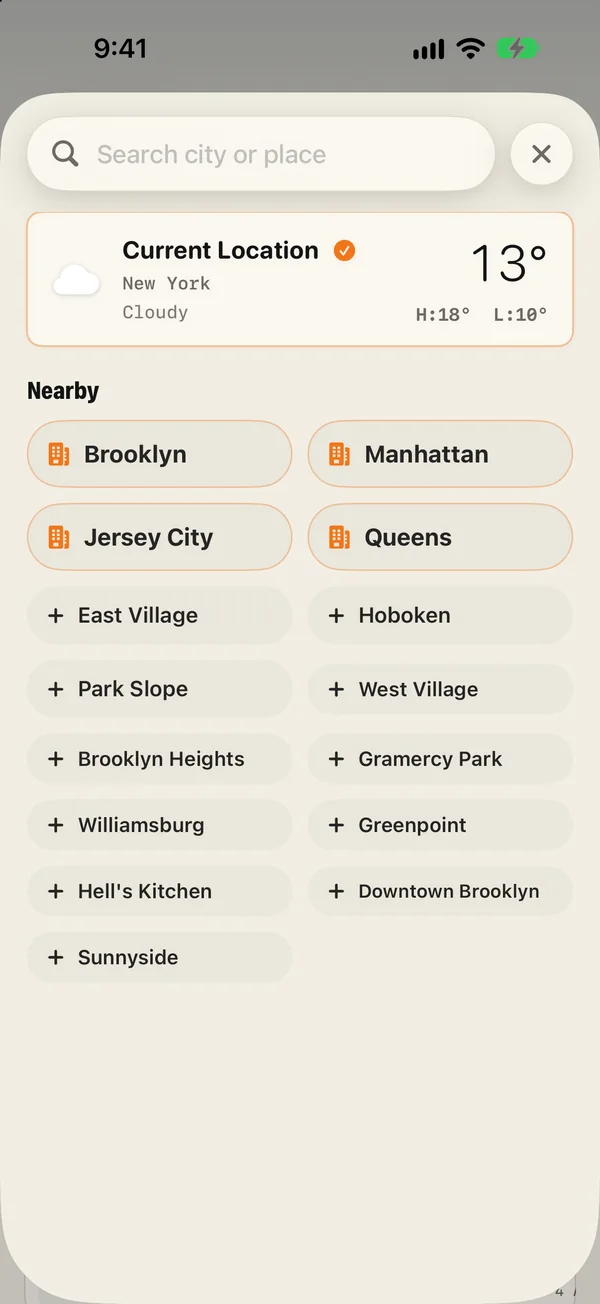
Weather for every place you care about: saving and switching cities
Save cities in Magic Weather, switch between them in a tap, see which have active warnings, and give each widget its own place. A guide for travellers.
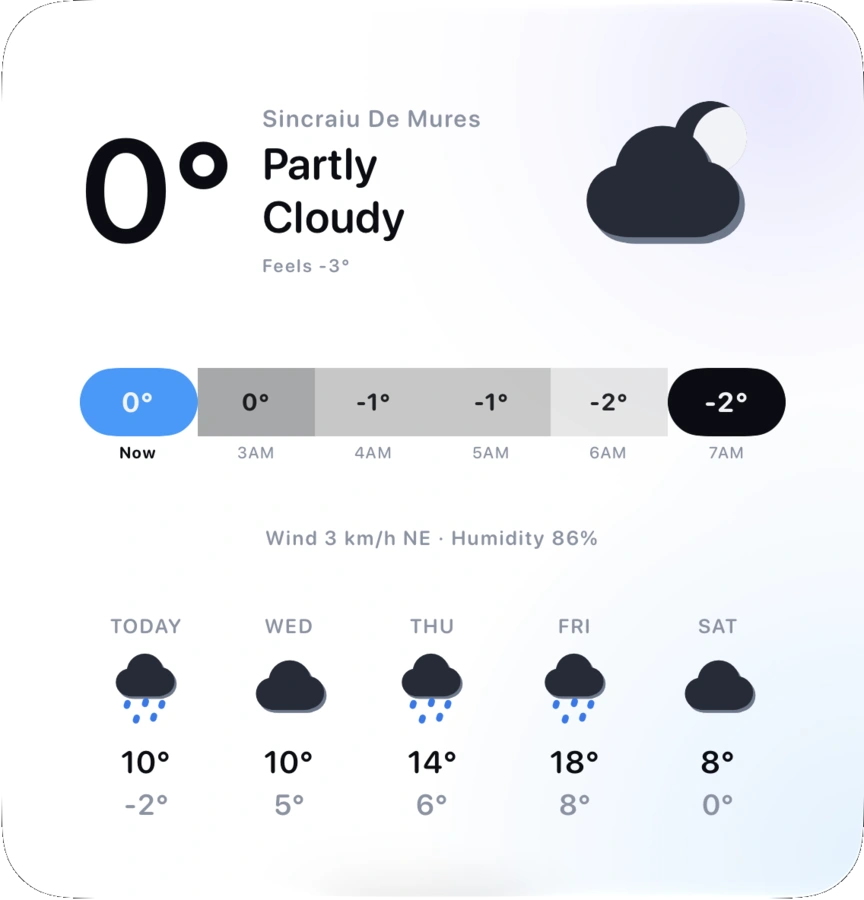
How to add weather widgets to your iPhone Home Screen and Lock Screen
Add Magic Weather widgets to your iPhone Home Screen, Lock Screen and Mac desktop: step-by-step, with what each widget shows and fixes if one is stale.
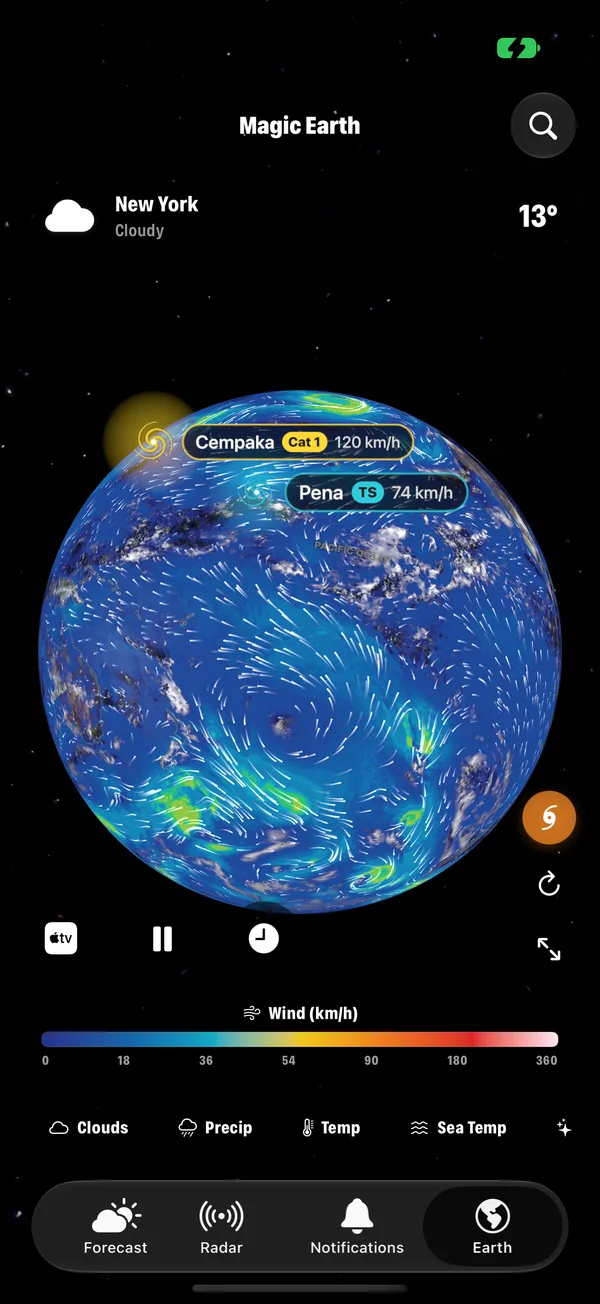
Every Earth layer in Magic Weather, explained
Clouds, rain, temperature, wind, pressure, sea temperature, aurora, UV, ozone, satellites, earthquakes and fires: what each Magic Weather layer shows.